

Check Anonymity: Test a Proxy Like Pixelscan or Whoer
Check anonymity tests one modem the way an anti-fraud system would: the system behind the connection, the IP and its carrier, DNS, IPv6 and where the IP is placed on the map. It is a Pixelscan- or Whoer-style check for the network side, built into your panel.
You need: a modem online. The check runs on any plan; the TCP/OS lines compare against a profile, which needs the Premium plan. Android phones used as proxy devices have no Check anonymity button.
In short
The box connects through the modem to a test server and reads what a website reads.
Each line says OK, Check, Problem or Not tested, with the reason in plain words.
It tells you which timezone to set in the browser, from 4 location databases.
Run the check
Step 1 of 3
In Proxy Management, click the OS icon in the Device cell of the modem you want to test (or OS Spoofing in its row menu). The TCP/IP Stack OS Spoofing Settings window opens.
Pick the profile your browser uses first, if you have not: TCP OS Spoofing.
What each line means
| Line | What it checks | If it is not OK |
|---|---|---|
| Spoofing active | The TCP/OS engine runs for this modem's profile. | Guide |
| Operating system | The system websites guess from the connection, compared with the profile. | Guide |
| Connection fingerprint | Window size, window scale and option order of the first packet. | Guide |
| Packet flags | Don't-fragment, IP ID and ECN bits. | Guide |
| Packet size | The MSS. 1400 or less is normal on 4G/5G. Only a profile with a fixed MSS can change what websites see. | Guide |
| Connection kept intact | The hop counter (TTL) on arrival. Higher than sent means something rebuilt the connection. | Guide |
| Public IP | The IP websites see, and its carrier. | Guide |
| DNS location | The country of the DNS server that looked up the test name. | Guide |
| IPv6 | Whether IPv6 works and shows the same system. | Guide |
| Location | Country, city and timezone from ipinfo.io, ipwho.is, freeipapi.com and geojs.io. | Guide |
When the check finds problems
Red lines mean websites can tell the connection is not the device your profile claims. In this example, the connection looks like Linux / Android while the profile says macOS, and the hop counter arrives higher than the box sends:
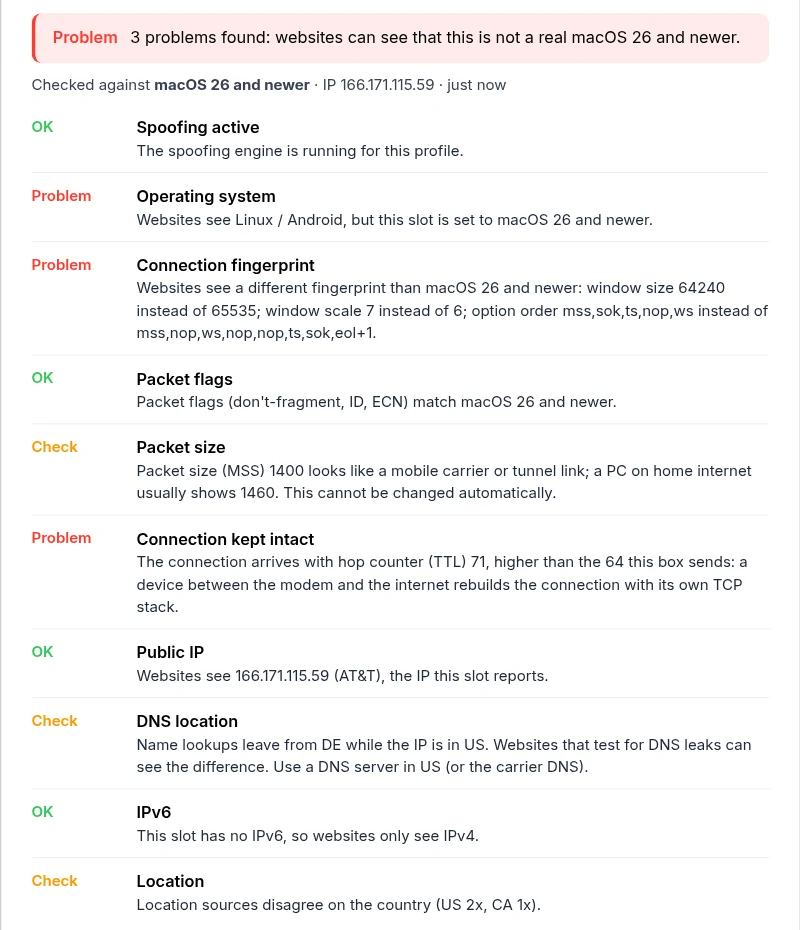
- Operating system / Connection fingerprint fail: check that the profile is set and saved, and that Disable WebRTC Leak is on.
- Connection kept intact fails: something between the modem and the internet rebuilds connections. Try another modem or SIM.
- Location sources disagree on the country: the IP is new to the databases. Rotate, or wait a few days for them to update.
Also test the browser side
Check anonymity covers the network. Your browser profile adds its own signals (canvas, fonts, screen, language). Open these through the proxy as well:
- XProxy antidetect check: browser and proxy consistency, in one page.
- Pixelscan: browser and proxy consistency.
- BrowserLeaks: IP, WebRTC, DNS and TCP pages.
- Whoer: anonymity score and timezone match.
FAQ
How often can I run it?
Once every 45 seconds per modem; the button counts down. Location answers are reused for a few hours for the same IP.
Does the check use much data?
No, a few small requests through the modem.
What next?
Fix what the check found, one signal at a time.