

Proxy Not Working or Slow? Setup Check & Diagnose Issues
Proxy not working or slow? Open the Setup Check for a plain-language review of your whole box. Then run Diagnose Issues on the proxy to find the exact step that fails, and Speed Check to find the slow step.
You need: nothing special for Setup Check and Diagnose Issues: they are on every plan, Free too. Speed Check and Speed Test are listed from the Basic plan (Pricing).
In short
Reviews your whole box: security, modems, stability, network and system. Each finding says what to do.
Tests one proxy step by step: modem, SIM, internet, DNS and proxy. It gives one answer and a fix button.
Measures every step between the proxy and the internet in about 10 seconds and names the slowest one.
Which tool do I use?
| Your problem | Use |
|---|---|
| The proxy does not connect, or a modem shows Disconnected | Diagnose Issues on that row |
| The proxy works but is slow | Speed Check on that row |
| I am not sure my box is set up well | Setup Check in the left menu |
| I want the line speed of a modem | Speed Test on that row |
What is the Setup Check?
Open Setup Check in the left menu, under System. It reads the settings and the state of your box and groups the findings. The Dashboard and the top bar show the same count of things that need attention.

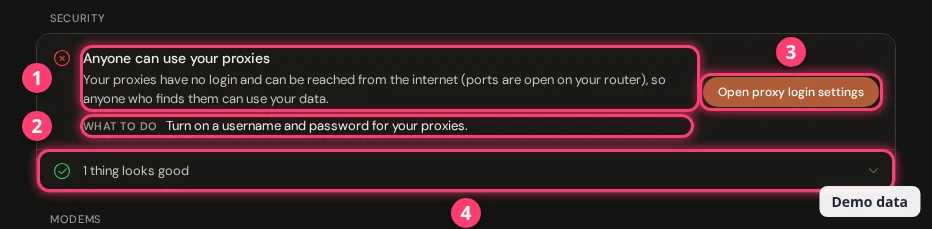
A red cross means to fix, an orange sign means to review. Things that look good are folded under "N things look good". The button on a finding takes you straight to the setting, or to Diagnose Issues.
What does the Setup Check look at?
| Group | Check | It warns when |
|---|---|---|
| Security | Proxy login | The proxies have no login and can be reached from the internet (to fix). With no login on a local network only, it is a note. A password that is empty, shorter than 8 characters or still the default is a warning. |
| Control panel password | There is no panel password (to fix when the box has a public IP), or the password is shorter than 8 characters. | |
| Modems | Modems working | A modem has no internet. The list says which and why: Data/Proxy error, Modem frozen, SIM missing or Rotating. The button Check these modems opens Diagnose Issues. |
| License | More modems are plugged in than your license covers. | |
| Modems detected | The box sees no modem at all. | |
| Stability | Auto restart | A modem restarts after less than 120 seconds without internet, or after the IP stayed the same fewer than 3 times. |
| IP checking | The IP is checked more often than every 10 seconds (warning), or a better check method is available (note). | |
| Network | Signal | A modem has a poor signal, weak or noisy. The finding also notes dongles that sit side by side, and signals that only drop in the evening. |
| IPv6 | IPv6 is on but no modem has an IPv6 address (note). | |
| DNS | No DNS server is set. See network settings. | |
| System | Clock | The server clock is not kept in sync. Modems may then disappear after a power cut. |
| Updates | A new version is ready (note). See update XProxy. |
A check is left out when the box has no data for it yet, for example before any modem reports a signal.
How do I find out why a proxy is not working?
Use Diagnose Issues. It is the guide for a modem that is down, has no internet, or does not answer on its port.
Step 1 of 3
Open Proxy Management. On the row of the proxy, click the arrow next to Rotate. The menu has three tools for this proxy:
- Speed Test 1: measures the line speed of the modem. More below.
- Speed Check 2: finds the slow step. More below.
- Diagnose Issues 3: finds out why the proxy does not work.
A modem that shows Disconnected also has a red What's wrong? link. It opens the same window.
What do the eight checks mean?
The box runs the checks from top to bottom. The first problem decides the headline.
| Check | When it fails, you see | What to do |
|---|---|---|
| Hardware Bus | "The modem is not connected", "The modem lost its connection" or "The modem is frozen". | Check the plug, press Reset USB, wait about a minute. If it stays red, unplug the modem for 10 seconds and plug it back in. |
| SIM & Radio Link | "There is no SIM card in the modem", "The SIM card is locked" or "The modem has no mobile network". | Push the SIM in firmly. A SIM with a PIN lock must be unlocked in a phone first. Check that the plan is active. |
| "The mobile signal is weak" or "The signal is noisy". | Move the modem or its antenna near a window. Spread dongles apart or use short USB cables. Try a SIM of another carrier. | |
| Interface & Subnet | "This modem clashes with your home network", "Another modem has the same label" or "The modem has no internet address". | For a clash, change the modem label to a number nobody uses (2 to 254). For no address, press Reconnect network, then reboot the modem if needed. |
| Data Plan Egress | "Your SIM has no data left", "The SIM cannot reach the internet", "The mobile network blocks secure websites on this SIM", "The modem got no IPv4 internet address" or "The connection is slow". | Check balance and plan with your mobile company, or swap the SIM with a working slot to see if the problem follows the SIM. For IPv6 only, set the APN IP Type to IPv4 only (dongle settings). For a slow connection, press Rotate IP. |
| DNS Resolution | "Websites are slow to open" or "Websites cannot be opened". | Open the DNS settings and pick a fast public DNS such as 1.1.1.1. If websites do not open at all, reboot the modem. |
| Proxy Services | "Your proxy is on, but no traffic gets through", "Your proxy is not running for this modem" or "An extra connection type is not ready". | Reboot the modem. If the proxy does not answer on its port, press Copy details and send it to support. |
| Rotation Readiness | "IP rotation is blocked by a duplicate label" or "The modem is slow to answer commands". | Change the duplicate label, or reboot the modem. See how to rotate the IP. |
| Router & Client Reachability | "You are testing from the same network as the server". | Nothing is wrong with the modem. Use the local address of the box, or test from a phone on mobile data. |
For phones and 4G routers the wording changes. For example you see "Your phone is waiting for your permission" (unlock the phone and allow USB debugging) or "The router is not answering" (check power and cable).
How do I find out why a proxy is slow?
Use Speed Check, then read the verdict. Speed Check measures each step in parallel and names the one that costs the most time.
Step 1 of 3
Choose Speed Check in the row menu. It starts at once. You can also open Diagnose Issues and switch to the Speed tab, then click Run Speed check. It takes about 10 seconds.
- The verdict 1 names the slow step in plain words. If something can be fixed with one click, the button is there, for example Rotate IP. After the click the box waits and measures again.
- The bars 2 show each step of the path from your box to the internet. The longest bar is the slowest. The step that explains the problem is highlighted.
- Download and Upload 3 show the speed through this proxy.
- Test from this browser 4 adds the time from your computer to the box.
What does Speed Check measure?
Each bar is one step of the path. The name changes with the device: modem, phone or router.
| Step | What it is | It warns when |
|---|---|---|
| Box internet | The box reaching the internet on its own connection. | First answer takes more than 300 ms (a problem above 1,000 ms). |
| Link to modem / phone / router | The link between the box and the device. | Over 30 ms on a cable (a problem above 100 ms). On Wi-Fi over 150 ms (a problem above 400 ms), or when the first reply after a quiet moment is late. |
| Modem internet / Phone internet / Router internet | The mobile signal and the time to open a connection over the SIM. | RSRP below −100 dBm (a problem below −110), SINR below 0 dB, or connecting takes over 400 ms (a problem above 1,500 ms). |
| Through this proxy | The whole path: time to the first answer on HTTP and HTTPS, and a download test. | First answer over 800 ms (a problem over 2,000 ms), or download under 2 Mbit/s (a problem under 0.5). |
| Limits | The limits you set for this proxy. | Under 10% of the data quota left, 90% of the allowed connections in use, or a speed limit under 2 Mbit/s or below the speed the line can do. |
What does each verdict mean?
| Verdict | What to do |
|---|---|
| "This proxy looks healthy" | Nothing. Every step that could be measured answered normally. |
| "The box's own internet is slow" or "down" | Check the cable, the router and your internet plan. Every proxy on the box is affected. |
| "The connection to the modem is slow" or "The box cannot reach the modem" (phone, router) | Press Reconnect device. Check the cable or Wi-Fi. |
| "The phone Wi-Fi falls asleep" | Press Keep Wi-Fi awake. New connections then start faster. |
| "Mobile signal is weak" or "noisy" | Press Rotate IP. Move the modem or antenna near a window. |
| "The mobile network is slow to connect" | Press Rotate IP. The mobile network may be busy. |
| "Traffic is not getting through" | Press Rotate IP or Reconnect device. The device may be offline, out of data or out of coverage. |
| "Downloads are slow" or "This proxy is slow" | Press Rotate IP. A new IP may land on a faster connection. |
| "Data quota is used up" or "almost used up" | Press Open quota settings (Selling Platform). |
| "Too many connections at once" | Close idle clients, or ask support to raise the limit. |
| "Speed is capped by a limit" | Press Open speed limit settings. See Proxy settings. |
A cause upstream of the proxy, such as the box, the link or the signal, shows as a warning, not a failure, when requests through the proxy are still fast. It tells you what may slow the proxy down.
Proxy not working? Symptom and fix
| You see | What to do |
|---|---|
| A modem is red and shows Disconnected | Click What's wrong? and follow the steps. Most often: Reset USB, then replug the modem. |
| The proxy times out, but the modem looks online | Run Diagnose Issues. Look at Data Plan Egress, DNS Resolution and Proxy Services. |
| Everything is slow | Run Speed Check and press the fix button it offers. Check the signal in the Setup Check. |
| No internet on a modem that has a SIM | Look for "Your SIM has no data left" or "The SIM cannot reach the internet". Top up the SIM or check the plan. |
| Websites open slowly, or not at all | Change the DNS server (try 1.1.1.1), or reboot the modem. See network settings. |
| Two modems mix up their traffic | They share a label or clash with your router. Change the label of one to a free number between 2 and 254 in the proxy list. |
| Modems restart again and again | If auto reboot is set very low, the Setup Check shows "Modems may reboot too quickly". Set it to at least 120 seconds. See watchdog & auto-recovery. |
| A modem disappears after a power cut | The Setup Check says the server clock is not kept in sync. Turn on automatic time sync on the server. |
| Anyone can use my proxies | The Setup Check shows Open proxy login settings. Turn on a username and password: Proxy settings. |
| Still stuck | Press Get help in the diagnose window. It copies the details for support. See Remote support. |
FAQ
What does "0 of 8 checks OK" mean?
Eight checks ran and none passed. When an early check fails, the later ones show Not checked, so the number is low. Fix the problem in the headline first, then press Check again.
Does Speed Check use my mobile data?
Yes, a little. It downloads up to about 5 MB and uploads about 1 MB through the proxy. The 24-hour history comes from small checks the box runs on its own.
Is the Setup Check free?
Yes. Setup Check and Diagnose Issues are on every plan. Speed Check and Speed Test are listed from the Basic plan.
What is the difference between Speed Test and Speed Check?
Speed Test measures the line speed of the modem and shows download and upload in the Speedtest column. Speed Check looks at the whole path to the internet through one proxy and tells you which step is slow.
What next?
Let the box fix modems and USB problems by itself, or check the history of IPs and uptime.