
VLESS (REALITY) Proxy Setup
VLESS with REALITY is an encrypted proxy built for phones and strict networks. To anyone watching the connection it looks like a normal HTTPS visit to a big website, so it is hard to detect or block — and your users only need to scan a QR code. XProxy gives every modem its own VLESS port.
Why choose VLESS?
- Private — the whole connection is encrypted; Wi-Fi owners, ISPs and firewalls cannot see what you visit.
- Hard to block — REALITY borrows the TLS identity of a real site (default
dl.google.com), so the traffic does not look like a proxy. - Phone-friendly — import with one QR scan, and the app routes the whole phone, not just one browser.
- No passwords to manage — access is controlled by the UUID inside the link.
Step 1 — Turn on VLESS
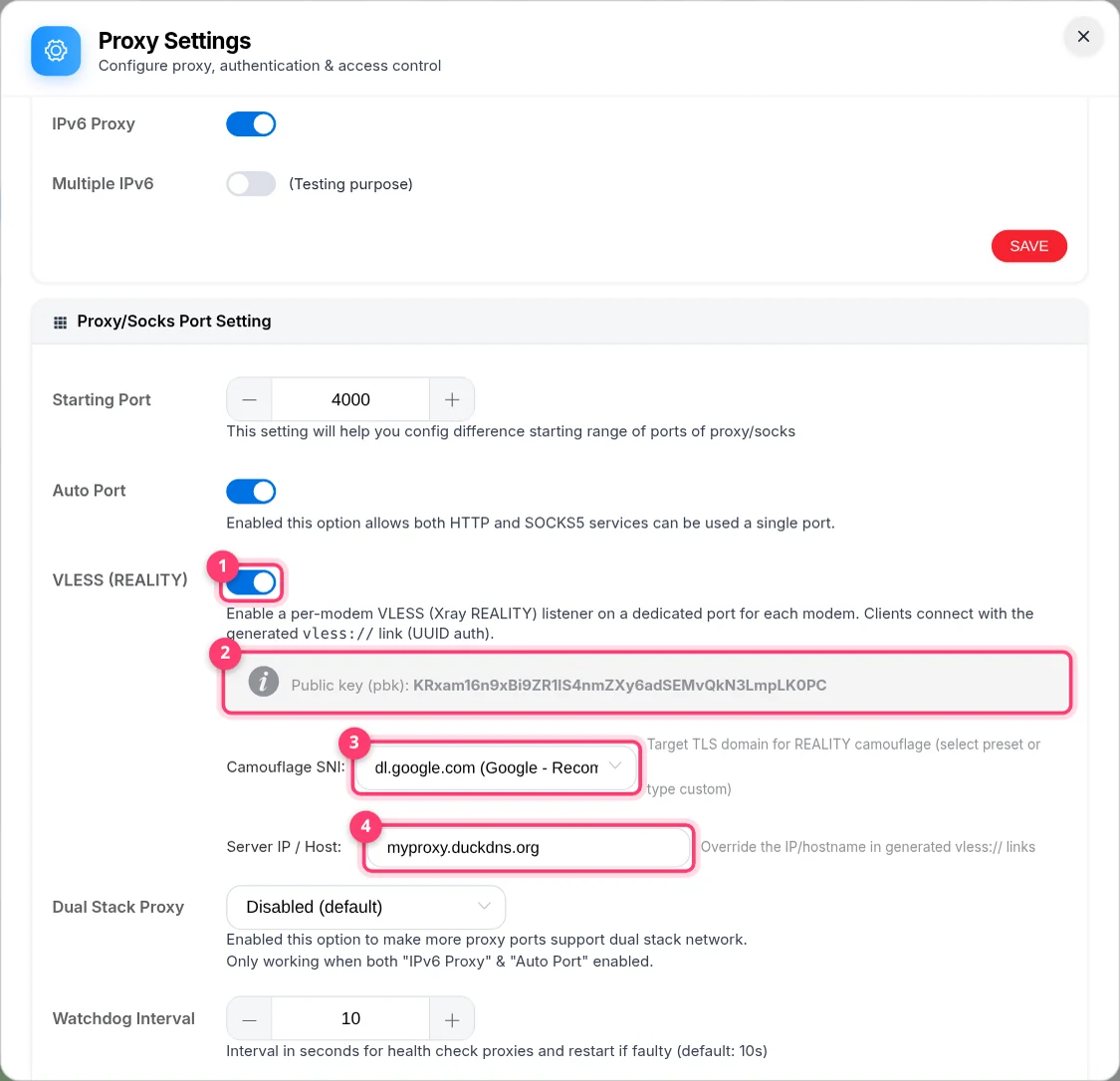
- Go to Proxy Management → Proxy Settings → General Settings.
- Switch on VLESS (REALITY). The first time, XProxy creates the REALITY key pair for you — the public key (
pbk) appears under the switch. - Leave Camouflage SNI on
dl.google.comunless you have a reason to change it (it is the website your traffic imitates). - Optional: in Server IP / Host, enter your public IP or DDNS name. It is used for the Remote QR code. Leave it empty if you only use LAN or VPS.
- Click SAVE. The XProxy app restarts for a few seconds and the VLESS ports open.
Step 2 — Find the VLESS port of a modem
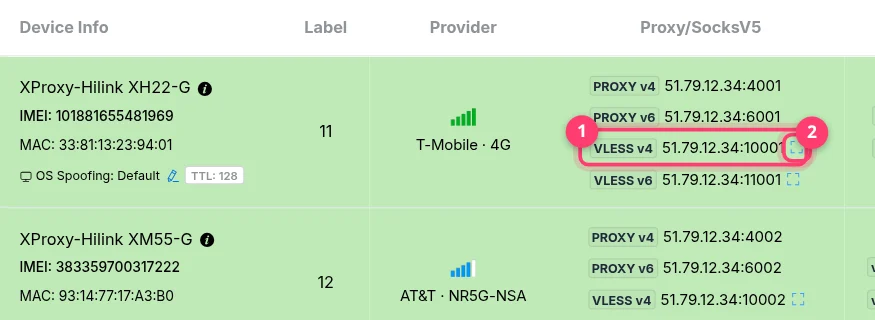
Back in Proxy Management, each modem now shows VLESS v4 (and VLESS v6 if the SIM has IPv6). Modem #1 uses port 10001, modem #2 10002, and so on. Click the address to copy the full link, or the small QR icon to show the QR code.
Step 3 — Pick the right QR code
The VLESS QR Code window has one tab per way of connecting. The link changes with the tab, so choose where the user is before you share it:
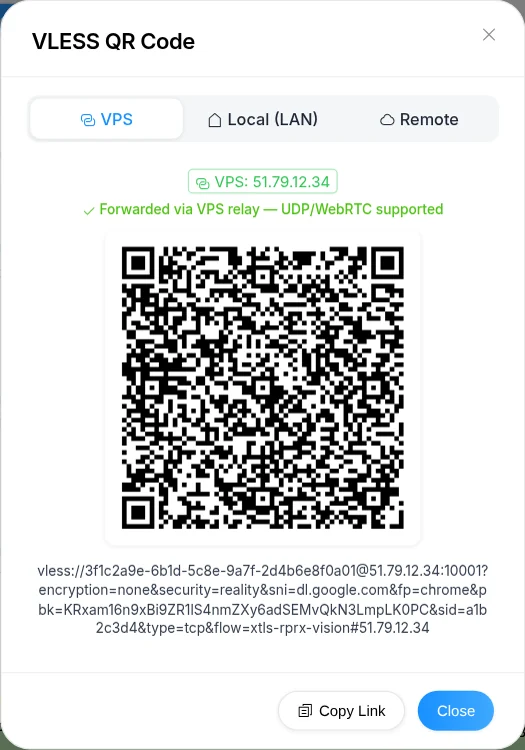
VPS — for users outside your network when VPS Forwarding is on. VLESS ports are always published on the VPS, nothing else to set.
Step 4 — Import it into an app
Any app that supports VLESS + REALITY + xtls-rprx-vision works. Pick your platform:
- Install v2rayNG (free, Google Play / GitHub).
- Tap + → Import config from QRcode and scan the QR code — or copy the link and choose Import config from Clipboard.
- Select the new server and tap the round connect button at the bottom. Accept the VPN request.
- Open
https://api.ipify.orgin the browser: it shows the modem's mobile IP.
What is inside the link?
vless://[email protected]:10001?encryption=none&security=reality&sni=dl.google.com&fp=chrome&pbk=KRxam16n9xBi9ZR1lS4nmZXy6adSEMvQkN3LmpLK0PC&sid=a1b2c3d4&type=tcp&flow=xtls-rprx-vision#51.79.12.34| Part | Meaning |
|---|---|
3f1c…0a01 | UUID — the key that unlocks the port. Treat it like a password. |
51.79.12.34:10001 | Where to connect: VPS, LAN or remote host, plus the modem's VLESS port. |
security=reality, sni, fp=chrome | Disguise settings: look like Chrome visiting the Camouflage SNI site. |
pbk, sid | Public key and short ID of your box. They prove the client is talking to your XProxy. |
type=tcp, flow=xtls-rprx-vision | Transport and flow. Your app must support xtls-rprx-vision. |
Who can use my VLESS ports?
- Anyone who has the link. Proxy username/password and IP whitelist do not apply to VLESS — the UUID is the only key, so share links only with people you trust.
- Premium plan: all modems on the box share one UUID. One link per modem, but the same key.
- Business plan: every modem gets its own UUID, so a customer's link only opens their modem. The Selling Platform can also create VLESS shared ports with a unique UUID per port.
Using VLESS from anywhere
- With VPS Forwarding (recommended): VLESS ports are published on your VPS automatically. Use the VPS tab — set up VPS Forwarding. If you set a port offset in Forwarding Ports, the VPS link already contains the shifted port (e.g.
13001instead of10001), so just share it as it is. - Through your router: forward TCP ports
10001and up to the box (NAT Forwarding), set Server IP / Host, and share the Remote QR code.
Troubleshooting
| Symptom | Fix |
|---|---|
| The VLESS switch is grey | Your licence is not Premium or Business. Upgrade the subscription. |
| No VLESS ports in the table | Click SAVE after switching on and wait for the app restart, then refresh the page. |
| App connects but nothing loads | The link points to an address the device cannot reach — e.g. a LAN link used on mobile data. Pick the VPS or Remote tab and import again. |
| Remote link times out | TCP port 10001+ is not forwarded on the router, or Server IP / Host is wrong. |
| “unknown flow” / REALITY errors in the app | The app or its core is too old. Update it, or use one of the apps listed above. |
| Links stopped working after a settings change | Changing the Camouflage SNI or Server IP / Host changes the link. Import the new link or QR code. |
FAQ
VLESS or SOCKS5 for my anti-detect browser?
Most anti-detect browsers only accept HTTP/SOCKS5, so use HTTP/SOCKS5 there. Use VLESS for phones, for networks that block proxies, or when the traffic must be encrypted on the way to your box.
Does IP rotation work with VLESS?
Yes. VLESS port 10001 exits through modem #1, so rotating modem #1 (any rotation method) changes the IP for its VLESS users too. Open connections drop for a moment while the modem reconnects.
Does it carry UDP?
Yes, apps that support it send UDP (calls, games, QUIC) through VLESS as well, so you avoid the UDP limits of plain SOCKS5.
