

Proxy Settings: Login, IP Whitelist & Website Filter
Open Proxy Management → Proxy Settings to set a proxy username and password, an IP whitelist, website block or allow lists, Sticky IP and IPv6 for all your mobile proxies.
You need: nothing for the login and the IP whitelist. IPv6, Dual Stack, website filters and Sticky IP need the Basic plan or higher (Pricing).
In short
The login, the whitelist and the website rules cover every modem proxy. Actions for one modem are in the row menu.
General, Address, Advanced, Login, Websites and Legacy. Pick a tab, change a card, then click Save.
The bar says applies instantly or all proxies restart. Nothing changes until you click Save.
Where do I find Proxy Settings?
Step 1 of 2
Open Proxy Management and click Proxy Settings 1 in the toolbar. A panel opens on the right.
On a phone the toolbar is shorter: tap More, then Proxy Settings 1.
What does each setting need?
| Setting | Tab | Plan |
|---|---|---|
| Proxy username and password, IP whitelist | Login | Free and up |
| Auto Proxy (one port), starting port | General | Free and up |
| IPv6 Proxy, Dual Stack, Multiple IPv6 | General | Basic and up |
| Website whitelist and blacklist | Websites | Basic and up |
| Sticky IP, health check, auto reboot | Advanced, General | Basic and up |
| Proxy through WAN, Connect / Disconnect Network | General, row menu | Basic and up |
| VLESS and Shadowsocks, WebRTC leak protection | General, Advanced | Premium and up |
Compare plans on the pricing page.
How do I set a proxy username and password?
Open the Login tab, turn on Enable proxy authentication, type a username and a password, and click Save. Your tool then needs this login for every modem proxy.
Step 1 of 2
- Open the Login tab. Under Password Authentication, turn on Enable proxy authentication 1.
- Type a Username 2 and a Password 3.
Every modem proxy port now asks for this login.
Enter the username and password in your browser tool, bot or script, next to the proxy host and port. The exact formats for HTTP and SOCKS5 are in HTTP & SOCKS5 proxy setup. Shadowsocks uses the same password. VLESS uses a private UUID inside its link instead.
How do I whitelist an IP address?
On the Login tab, turn on Enable IP authentication in the Whitelist IP card and list the IP addresses or subnets that may use your proxies without a login.
Step 1 of 2
- On the Login tab, scroll to Whitelist IP. Turn on Enable IP authentication 1.
- Two switches below it are optional:
- Force authentication in LAN connections 2: devices on your local network must log in too. Turn it on when you sell proxies.
- Allow devices on your Tailscale network without login 3: Tailscale addresses (
100.64.0.0/10) skip the login.
- Type one IP or subnet per line in the box 4, for example
203.0.113.25or198.51.100.0/24.
The listed IPs use the proxies without a username and password. Everyone else still needs the login.
How do I block or allow websites on my proxy?
Open the Websites tab. Choose Website Blacklist Access to block the sites you list, or Website Whitelist Access to let only the sites you list through.
Step 1 of 2
- Open the Websites tab. Under Global Website Access Control, pick a mode 1:
- No Restriction: every website works (default).
- Website Whitelist Access: only the listed websites work.
- Website Blacklist Access: the listed websites are blocked, the rest works.
- Type the websites in the box 2. Separate entries with commas and use
*as a wildcard, for example*.tiktok.com,*facebook.com*.
The rule covers all your proxy ports.
Needs the Basic plan or higher. Want a different rule for one port? The Legacy tab has per-port lists.
How do I set the port, Auto Proxy, IPv6 and Dual Stack?
They are all on the General tab. The starting port, Auto Proxy (one port), IPv6 Proxy and Dual Stack Proxy decide which ports each modem gets.
Step 1 of 3
These switches are at the top of the General tab.
- IPv6 Proxy 1: adds an IPv6 port for every modem. Needs the Basic plan or higher.
- Starting Port 2: the first number of the port pool. Every modem port is this number plus an offset plus the modem position.
- The port map 3 lists the ranges for your start port, for example HTTP + SOCKS5
4001 – 4064. - Auto Proxy (one port) 4: HTTP and SOCKS5 share one port per modem. The box detects which one your app uses.
Want many IPv6 addresses on one modem? See Multiple IPv6 proxies per modem. Per-modem VLESS needs the Premium plan: see VLESS (REALITY) proxy setup.
How do I keep a stable IP and restart a stuck modem?
Sticky IP keeps the carrier from dropping the current IP between rotations. Automatically Reboot restarts a modem whose IP does not change or whose IP check keeps failing.
Step 1 of 2
Open the Advanced tab. Sticky IP keeps the modem's connection to the carrier alive, so a CGNAT IP does not change without a rotation. The panel mentions T-Mobile as a carrier where it helps.
- Turn on Sticky IP 1.
- Pick a Method 2: PING (ICMP), HTTP HEAD, DNS (resolver) or DNS (raw UDP). Carriers that block ping work better with HTTP or DNS. DNS (raw UDP) uses the least data.
- Type a server or domain in IP/domains 3.
- Set the Interval and the Timeout in seconds 4. Size and TTL set the packet size and the TTL of the check.
Rotation timing, duplicate IPs and the IP checker are in IP Rotation Settings. Watching for stuck modems and USB drops: Watchdog & auto-recovery.
What is the Address tab?
The Address tab sets the host that customers and links use. Pick a Source: Public IP, DDNS, VPS relay or Custom. You can override the host for HTTP/SOCKS, VLESS/SS, Links & API and Selling. The proxy list, Copy, Export, QR codes and rotation links all use it.
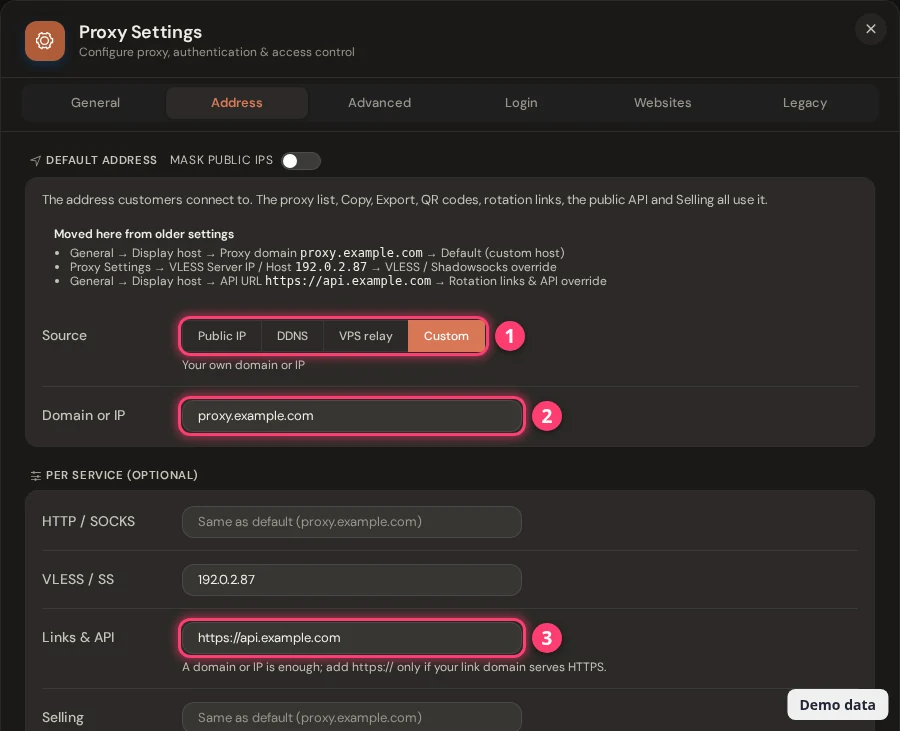
To reach your box from outside your network, set up VPS Forwarding, NAT Forwarding or Dynamic DNS first.
What else is on the General and Advanced tabs?
| Card | What it does |
|---|---|
| Proxy through WAN (General) | Serves devices on your network with one forward proxy on the box address. HTTP and SOCKS5 share one port. Traffic leaves through the box's own internet, not through the modems. Needs the Basic plan or higher. |
| Proxy Group Configuration (General) | Settings of the ping check that removes a failed modem from a proxy group: host to ping, ping count and size, check interval and timeout. See Proxy Group. Saving restarts the proxies. |
| Proxy Logging Setting (General) | Turns proxy access logs on or off and sets how many days they stay on disk (1 to 30). Also sets how long IP rotation history and uptime logs are kept (7 to 365 days, 60 by default). See Proxy analytics & access logs. |
| Force Server Resolve DNS (Advanced) | SOCKS5 clients look up website names through the proxy, not on their own computer. This keeps website rules working and stops DNS leaks. The panel recommends it. |
| Disable WebRTC Leak (Advanced) | Forces WebRTC traffic through the modem network. eth0 and Tailscale always stay allowed, so the panel and remote access keep working. Needs the Premium plan. TCP OS Spoofing needs it: see TCP OS Spoofing. |
What is in the Legacy tab?
The Legacy tab holds older per-port options. The panel says most setups do not need them. Each card has an Apply button of its own.
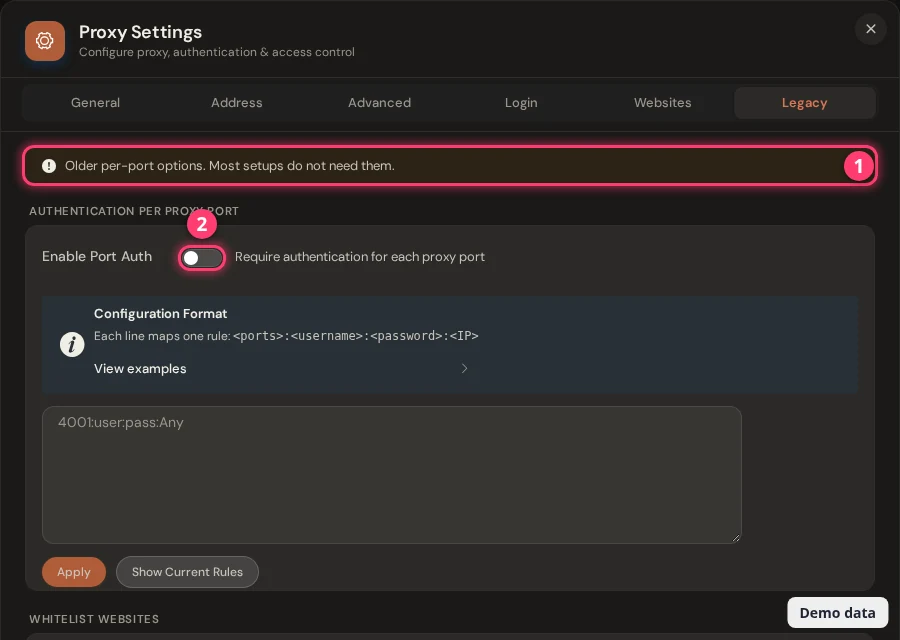
| Card | Line format | Plan |
|---|---|---|
| Authentication per proxy port | <ports>:<username>:<password>:<IP>, for example 4001:user:pass:Any or 4002-4005:Any:Any:203.0.113.5 | Business (Selling Platform) |
| Whitelist Websites and Blacklist Websites (per port) | <ports>:<website patterns>, for example 4001-4005:*google.com* | Basic and up |
| Auto Rotation IP per Port (deprecated) | <ports>:<start seconds>[:end seconds], for example 4002-4005:900-1200 | Basic and up |
For rotation timers, use Schedule Rotation in Proxy Management instead: see Change or rotate the IP.
What else can I do in the Proxy Management list?
The proxy list has a few tools that are not in Proxy Settings: the row menu, the IP Quality and Note columns, and the CSV export.
Step 1 of 3
In Proxy Management, click the small arrow next to Rotate on a row.
- Disconnect Network / Connect Network 1: stops or restarts that modem. A stopped proxy does not work until you connect it again. Needs the Basic plan or higher.
- Change Position 2: type another position number and the two modems swap places.
- IP Rotation Log and Uptime Statistics 3: see IP pools, rotation log and uptime.
Questions
How do I set a username and password for my proxies?
Open Proxy Management → Proxy Settings → Login. Turn on Enable proxy authentication, type a username and a password, and click Save. It works on every plan.
Can I use a password and an IP whitelist together?
Yes. A request is accepted when it carries the right username and password, or when it comes from a whitelisted IP.
How do I limit bandwidth per proxy?
Proxy Settings has no bandwidth switch. You set a speed limit when you create or edit a shared port in the Selling Platform: choose Limited under Bandwidth Limit and type a speed from 1 to 10000 Mbps. See How to use the Selling Platform. The limit does not apply to Shadowsocks and VLESS ports.
What does Auto Proxy (one port) do?
HTTP and SOCKS5 work on the same port for each modem, so the box opens one port instead of two. Turn it off if you want a separate SOCKS5 port per modem.
Which changes restart my proxies?
The Save bar tells you before you save. Changes to the starting port, Auto Proxy, IPv6, Dual Stack, VLESS or Shadowsocks on/off, WebRTC and the proxy group check restart all proxies for a few seconds. Logins, the IP whitelist, website rules and Sticky IP apply instantly.
What next?
Pick how your tools connect, then control the IP.