

Update XProxy: Check Version, Rollback & Restart
Check your XProxy version, update with one click, read what changed, go back to an older version, and restart the app or the box.
You need: the XProxy panel and an internet connection on the box. Updates and restarts work on every plan.
In short
System Information → UPDATE NOW. About 1 to 2 minutes of downtime.
See what is new, improved and fixed.
Version history lets you return to an older version.
How do I update XProxy?
Step 1 of 4
In the left menu, open System Information. The Update Center card shows:
- 1 Your version and its Build ID. Click either one to copy it.
- 2 Latest version. It shows the new version number and please update now when an update is ready.
- 3 UPDATE NOW. When you are on the latest version it says FORCE UPDATE, which installs the same version again.
- 4 HISTORY UPDATE: the versions this box ran before.
- 5 What's new in your version, and 6 View full changelog.
What does System Information show?
The top card of System Information shows your license key, the server name and your subscription. This part is marked in the picture.
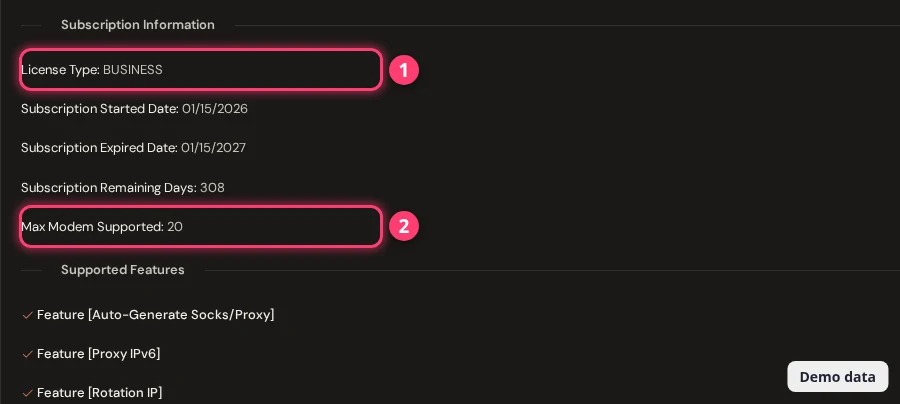
- License Key and subscription secret key: click to copy.
- Subscription started, expired and remaining days, for a paid plan. A Lifetime license shows its support dates instead.
- Not activated? The page walks you through activating the Free license. See activate or upgrade a license.
What is the difference between Restart App and Reboot OS?
| Restart App | Reboot OS | |
|---|---|---|
| What restarts | Only the XProxy application | The whole box: system, services and modems |
| Time | About 10 to 30 seconds | 1 to 3 minutes |
| Use it when | A quick restart is enough | The app restart did not help |
A dongle is stuck but the box is fine? Do not restart everything. See Dongle settings and Watchdog and auto-recovery.
FAQ
How do I update XProxy?
Open System Information, click UPDATE NOW, then Start Update Now. Keep the page open until it says Update Completed Successfully!
Will an update erase my settings?
No. The update window says your configurations, modem settings and license stay safe. A backup is still a good idea before a big update: see Backup and restore.
Will my proxies go offline during an update?
Yes, for a short time. The panel says proxies disconnect briefly during the restart, typically 1 to 2 minutes.
Can I go back to an older version?
Yes. Click HISTORY UPDATE and use Update to This on a version. The panel warns that older versions may cause compatibility problems.
Where do I read what changed?
In System Information, under Update Center, and on the public XProxy changelog. Each entry is marked New, Improved or Fixed.
What next?
Save your settings first, or keep an eye on your dongles.