

Mobile Proxy Rotation Settings: Smart IP Guard & Unique IPs
Rotation Settings control how each modem gets a new IP: delays, retries, repeated-IP protection with Smart IP Guard, and the rotation method and IP checker for your modem type.
You need: a Basic plan or higher. The Free plan has no IP rotation (Pricing).
In short
Delays, a minimum time between rotations, and reconnect tries when a modem loses its connection.
Rotate again when the new IP is the same as before, used by another modem, or seen too often. Smart IP Guard scores every IP.
General Settings has the rotation method for Hi-Link, XH22 and Android dongles, the USB stick page and the IP checker.
Where are the rotation settings?
Open Proxy Management and click Rotation Settings 1 in the toolbar. On a phone, tap More, then Rotation Settings 1. Proxy Settings 2 and IP Pools 3 are in the same place.
The window has five tabs: General, Dongle, Phone, Duplicate IP and Smart IP Guard.
There are two places. Proxy Management → Rotation Settings opens a window with the timing and IP rules. General Settings has three pages: Rotation Methods, Legacy USB Setting and IP Checker Setting. All of them apply to the whole box.
How do I change the rotation delays and stop automatic IP changes?
Use the General, Dongle and Phone tabs. Never change IP automatically keeps the IP until you rotate it yourself.
Step 1 of 4
Open the General tab.
- Delay before rotation 1: seconds the box waits before it starts. An API call is answered first, then the job runs.
- Prevent rotation 2: the shortest time between two rotations of the same port. It stops scripts from rotating too often.
- Reconnect when failure and Max retry reconnect 3: when a modem loses its mobile connection, the box tries to reconnect it after this many seconds, up to this many times. 0 turns it off.
| Setting | What it does | New box |
|---|---|---|
| Delay before rotation | Seconds to wait before a rotation starts (0 to 10) | 0 |
| Prevent rotation | Shortest time between two rotations of one port, in seconds | 5 |
| Reconnect when failure | Seconds before the box reconnects a modem that lost its connection (0 = off) | 30 |
| Max retry reconnect | How many reconnect tries | 10 |
| Delay during rotation (dongle / phone) | Seconds to wait while the modem reconnects (0 to 10) | 0.5 / 3 |
| IP unchanged detect | Check after a rotation whether the IP stayed the same | Off |
| Never change IP automatically | No automatic reconnect, reboot or duplicate-IP rotation | Off |
How do I stop duplicate IPs?
Open the Duplicate IP tab. Rotate if same IP rotates again when a modem gets the IP it had before. Make IP Unique rotates again when another modem already has that IP.
Step 1 of 2
Open the Duplicate IP tab. It has two cards.
- Rotate if same IP 1 (card Individual Modem): when the new IP is the same as the previous IP of this modem, the box rotates again.
- Make IP Unique 3 (card All Modems): when the new IP is already used by another modem, the box rotates again.
Each card then shows Wait Seconds (1 to 3600) and Max Attempts (1 to 100) 2: the pause before each new try, and how many tries the box makes. The panel starts with 30 seconds and 5 attempts.
What is Smart IP Guard and how do I use it?
Smart IP Guard gives every IP a score from 100 down and rotates a modem again when it gets an IP it has used too often. It checks the IPs of all your modems within a time window you choose.
Step 1 of 3
Open the Smart IP Guard tab.
- Turn on Enable Smart IP Guard 1. The box now remembers every IP your modems get.
- Set the Time Window 2: how far back it looks for an IP it has seen before. From 1 hour up to your rotation-history retention (60 days by default). The presets are 1h, 6h, 12h, 24h, 2d, 1w and 1mo. The panel starts at 24 hours.
- Set the Fresh Score (minimum) 3: an IP with this score or more is Fresh. Below it is Warning.
- Set Re-rotate when score less than 4: below this score the box rotates the modem again. 0 turns re-rotation off.
How does the IP score work?
An IP starts at 100 the first time the box sees it. Each time the same IP comes back, the score drops by 1. The score is 0 at the lowest.
| Times the IP was seen | Repeats | Score | With Fresh Score 99 |
|---|---|---|---|
| 1 | 0 | 100 | Fresh |
| 2 | 1 | 99 | Fresh |
| 3 | 2 | 98 | Warning |
| 11 | 10 | 90 | Warning |
- Fresh: the score is at least the Fresh Score. Nothing to do.
- Warning: the IP came back often enough that its score fell below the Fresh Score. If it is also below the re-rotate score, the box rotates again.
- Stale: the box used all its retries. It stops trying and the modem keeps the IP (or stops, with auto-stop on).
The box checks a modem when its IP changes, not on every poll. A rotation you start by hand or on a schedule resets the retry count. A stopped modem is skipped.
You see the result in the IP Quality column of Proxy Management and in the IP Pools window, which has a Guard Settings button that opens this tab. Smart IP Guard needs the IP history, which is part of the Basic plan.
How do I pick the rotation method for my dongle?
Open General Settings → Rotation Methods. Pick the method for your kind of modem. Some carriers need a slower method to hand out a new IP.
Step 1 of 2
Open General Settings → Rotation Methods. Each card is for one kind of modem. Pick a method and click that card's Save.
- Hi-Link Dongles 1: Method 1 to 7. Reset USB puts the Hi-Link settings back to default.
- XH22 Dongles 2: Method 1 to 5 (see the table below).
- Android Legacy 4: four ways to toggle airplane mode or use the voice assistant.
| XH22 method | What it does |
|---|---|
| 1 · Fast & stable | Network change. The quickest. |
| 2 · Radio reset | Slower change. |
| 3 · Deep reconnect | Slower change. |
| 4 · Full device reboot | Slower change. |
| 5 · Offline hold | Radio off for a time you set, then reconnect. Your proxy is offline during the hold. |
Hi-Link dongles have Method 1 to 3 (Basic), Method 4 to 6 (Standard rotation) and Method 7 (Standard rotation, legacy). Android Legacy phones rotate by airplane mode (Settings page or Quick Settings bar), by 3GPP on Samsung, or by voice assistant.
What is the Legacy USB Setting?
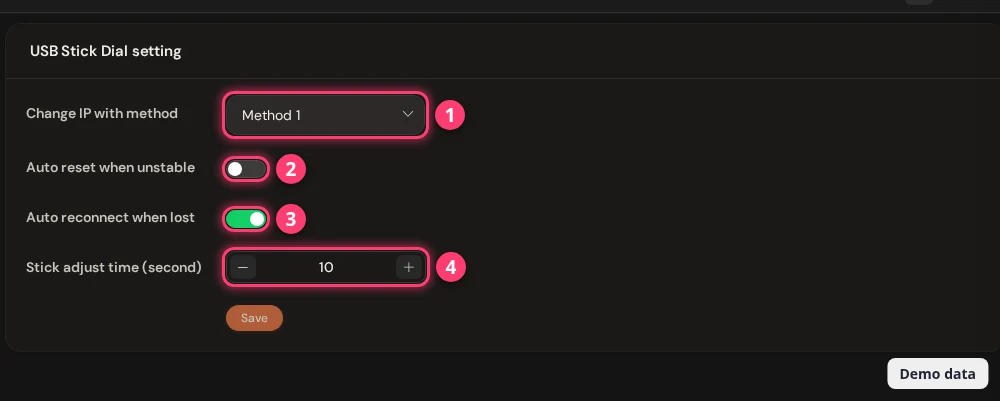
General Settings → Legacy USB Setting is for older USB stick modems (the page is called USB Stick Dial setting). Pick the method, then decide what the box does when a stick becomes unstable or loses its connection.
What does the IP checker do and when should I change it?
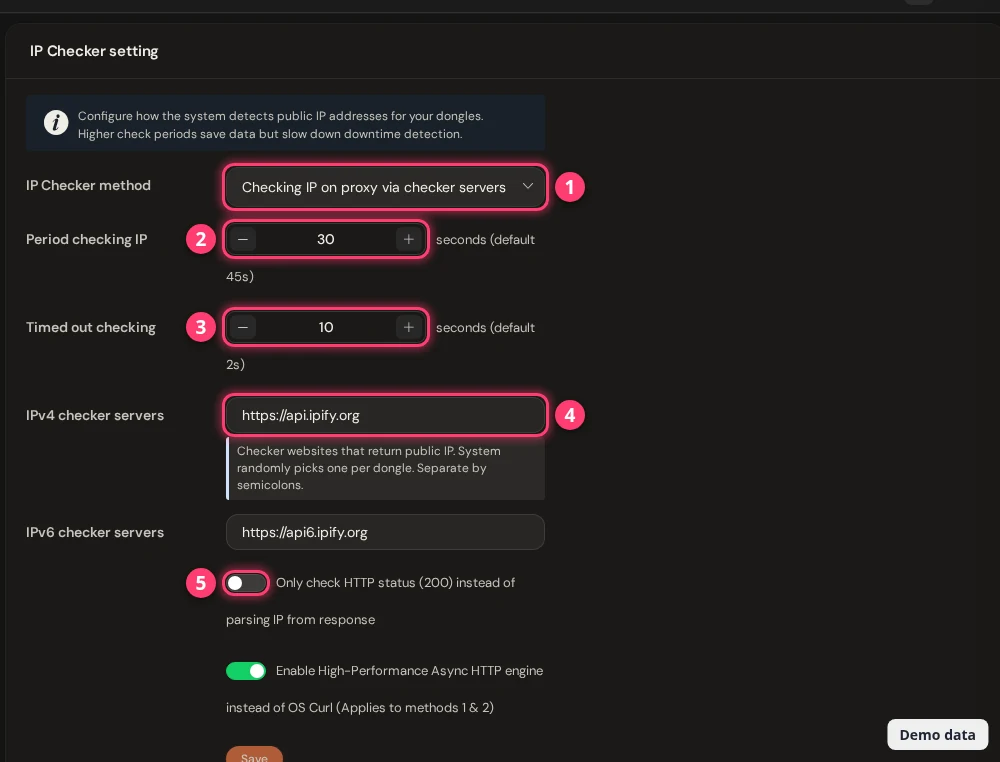
The IP checker finds the public IP of each modem. The panel uses it to show each modem's public IP and to notice downtime. Open General Settings → IP Checker Setting to change how it checks.
| Setting | What it does |
|---|---|
| IP Checker method | Five ways to read the IP: on the dongle or on the proxy through checker servers, through Google DNS or OpenDNS (fast, saves data), or through the XProxy smart polling server (recommended). |
| Period checking IP | Seconds between checks. The default is 45. A longer period saves data but notices downtime later. |
| Timed out checking | Seconds to wait for an answer. The default is 2. |
| IPv4 / IPv6 checker servers | Websites that answer with the public IP. The box picks one at random for each dongle. Separate them with semicolons. Locked when you use the smart polling server. |
| Only check HTTP status (200) | Only checks that the page answers, and does not read the IP from the answer. |
| High-Performance Async HTTP engine | A faster checker than the system curl. It applies to methods 1 and 2. |
Questions
How do I stop my mobile proxy from getting the same IP again?
Open Rotation Settings → Duplicate IP and turn on Rotate if same IP. To also avoid IPs that other modems used, turn on Make IP Unique, or turn on Smart IP Guard to avoid IPs that came back too often within your time window.
Why does the IP not change after a rotation?
Some carriers give the same IP back when a modem reconnects quickly. Turn on Rotate if same IP, or on XH22 dongles pick Method 5 · Offline hold in Rotation Methods. More fixes: Change or rotate the IP.
How do I stop XProxy from changing my IP by itself?
Turn on Never change IP automatically on the General tab. The box then does no automatic reconnect, reboot or duplicate-IP rotation. You and your schedules can still rotate.
What do Fresh, Warning and Stale mean?
They tell how often an IP was seen in your time window. Fresh is a score at or above your Fresh Score. Warning is below it. Stale means Smart IP Guard used all its retries and gave up.
Can Rotation Settings change the IMEI or MAC address on every rotation?
No. There is no IMEI or MAC switch in Rotation Settings. To change the IMEI or label of a dongle, see Dongle settings.
What next?
See the IPs your modems used, and the other proxy settings.