
VPN Mobile Proxy — WireGuard & OpenVPN
Every modem in your XProxy box can run its own VPN server. Connect a laptop, phone or router with WireGuard or OpenVPN and all of its traffic — including apps without proxy settings, games and system services — leaves through that modem's mobile IP.
WireGuard or OpenVPN?
| WireGuard | OpenVPN | |
|---|---|---|
| Port of modem #1 | UDP 8001 | UDP 9001 |
| Speed & battery | Fastest, lightest | Slower, heavier |
| Apps | Official apps for every OS, many routers | OpenVPN Connect, most routers and firewalls |
| Login | Key inside the file | Certificate inside the file, optional username/password |
| Choose it when | Almost always | The device, router or company only supports OpenVPN |
Only need a browser or a scraper? An HTTP/SOCKS5 proxy is simpler. Want encryption on a phone with a QR code? Look at VLESS.
Step 1 — Open VPN Service
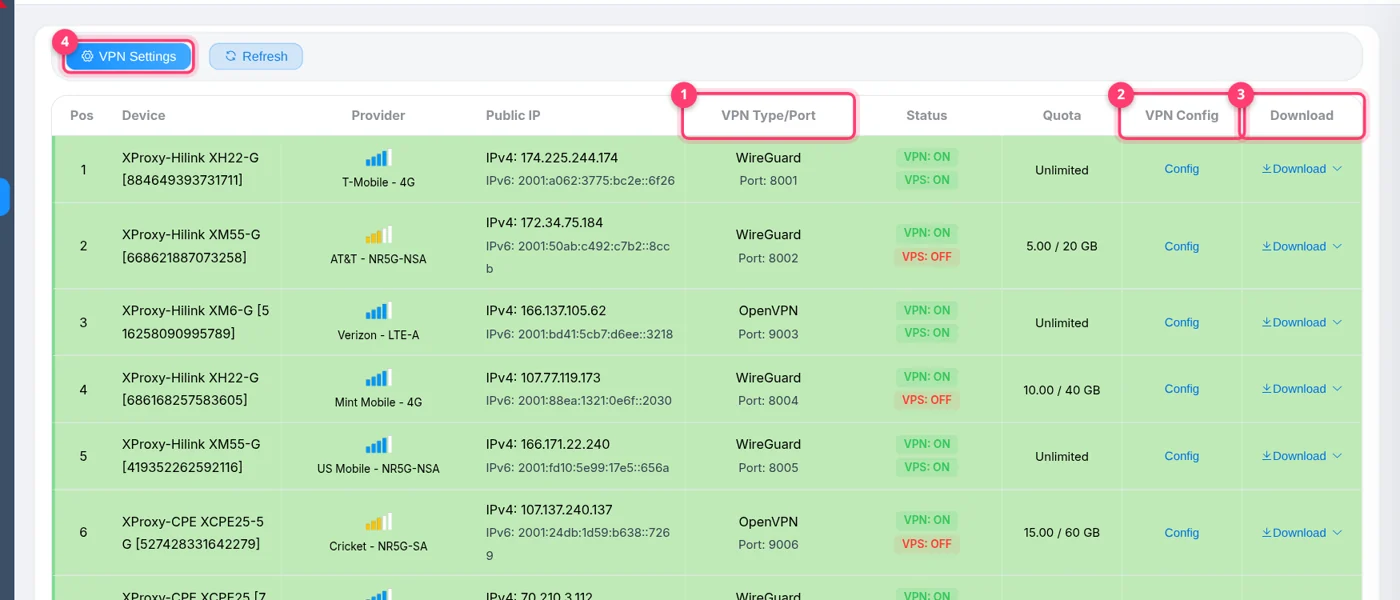
In the menu, open VPN Service. Every modem has a row showing its VPN Type/Port, whether the VPN and the VPS tunnel are on, its data Quota, and the Config and Download actions.
Step 2 — Configure the VPN of a modem
Click Config on the modem you want to use:
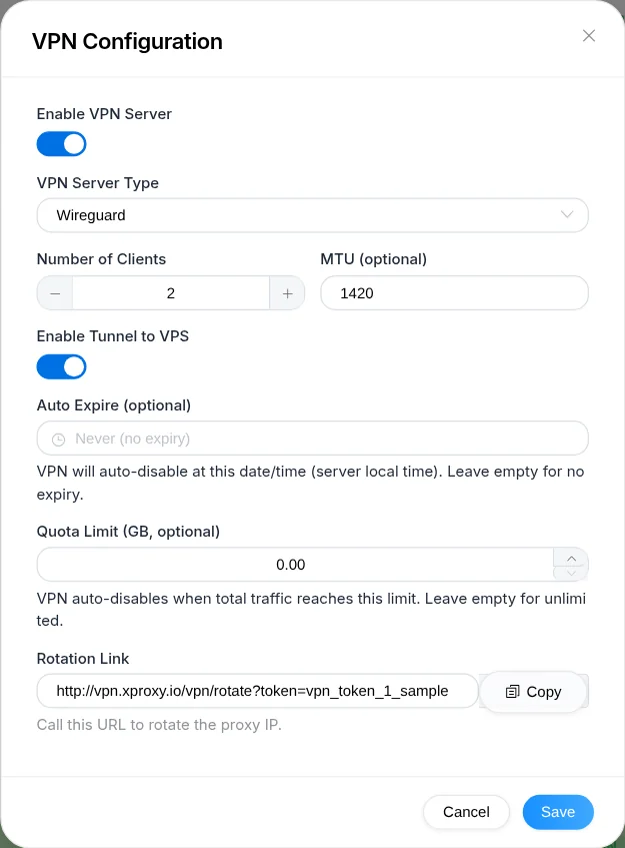
① Enable VPN Server · ② VPN Server Type · ③ Number of Clients · ④ Enable Tunnel to VPS · ⑤ Rotation Link
| Field | What to set |
|---|---|
| Enable VPN Server | On. |
| VPN Server Type | Wireguard or OpenVPN. To switch later, turn the VPN off and save first. |
| Number of Clients | How many devices will use this modem. Each device gets its own file — never use one file on two devices at the same time, they will kick each other off. |
| MTU (optional) | Leave empty (1420). Try 1280 if some sites hang on mobile networks. |
| Username / Password (OpenVPN only, optional) | The app asks for them when connecting. The certificate inside each file is the main protection, so keep every file private. |
| Enable Tunnel to VPS | On if devices connect from outside your network (see Step 3). |
| Auto Expire / Quota Limit (GB) | Optional. The VPN switches itself off at that date or after that much traffic — handy when you rent access out. |
| Rotation Link | Shown after the first save. Calling it gives this modem a new IP (see below). |
Click Save. XProxy creates the VPN server and one client file per device.
Step 3 — Make it reachable from anywhere
On the same network as the box you can skip this step. From outside, pick one option:
- VPS tunnel (recommended, no router changes): first connect your VPS once with the VPS Forwarding guide (General Settings → Forwarding Ports). Then open the modem's Config and switch on Enable Tunnel to VPS, and pick VPS IP when you download the files.
- Router: forward UDP ports
8001+ (WireGuard) or9001+ (OpenVPN) to the box — NAT Forwarding guide.
VPN Settings → Ports & Forwarding holds the WireGuard and OpenVPN start ports (8000 / 9000 → first modem on 8001 / 9001). Leave them unless they clash with something else on your network.
Step 4 — Download the client files
Open the Download menu of the modem and pick the address your devices will connect to. You get a ZIP with one file per client:
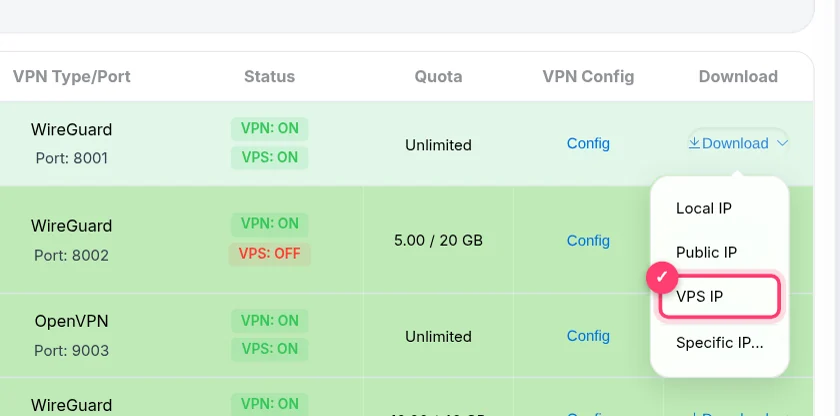
| Option | Use it when |
|---|---|
| Local IP | Devices are on the same network as the box. |
| Public IP | You forwarded the UDP ports on your router. |
| VPS IP | Enable Tunnel to VPS is on (Step 3). |
| Specific IP... | You want your own domain or DDNS name inside the file. |
What the files look like:
[Interface]
PrivateKey = <this device's private key>
Address = 10.0.1.2/24, fd78:0486:2c09:1::2/64
DNS = 8.8.8.8
MTU = 1420

[Peer]
PublicKey = <XProxy server public key>
AllowedIPs = 0.0.0.0/0, ::/0
Endpoint = 51.79.12.34:8001
PersistentKeepalive = 15
Endpoint is the address you picked in the Download menu plus the modem's WireGuard port. AllowedIPs = 0.0.0.0/0, ::/0 sends all traffic through the modem.
Step 5 — Connect your device
- Install the official WireGuard app from wireguard.com.
- Click Import tunnel(s) from file and pick a
.conffile from the ZIP (one file = one device). - Click Activate. The status turns green and the whole computer uses the modem's mobile IP.
Check that it works: https://api.ipify.org should show the modem's mobile IP, and dnsleaktest.com should not show your home ISP.
Change the IP
Copy the Rotation Link from the modem's Config. Anyone with the link can rotate that modem — no dashboard login needed, so it is safe to give to the person using the VPN:
curl "https://vpn.example.com/vpn/rotate?token=YOUR_TOKEN"The VPN stays connected — traffic pauses for a few seconds while the modem gets its new IP. Set your own domain for these links under VPN Settings → Rotation Link Domain. More options: How to Change / Rotate IP.
Troubleshooting
| Message or symptom | Fix |
|---|---|
| “VPN server is not enabled. Please enable VPN server first.” | Turn on Enable VPN Server in Config and save before downloading. |
| “VPS tunnel is not enabled…” | You chose VPS IP; switch on Enable Tunnel to VPS for that modem first. |
| “VPN server already enable can not change VPN type!” | Switch the VPN off, save, then change the type and switch it on again. |
| App never connects from outside | The UDP port is not reachable. Use the VPS tunnel, or forward UDP (not TCP) on your router, and download the files again with the matching option. |
| Connected, but no internet | Check the modem is online in Proxy Management, and that its Quota or Auto Expire has not switched the VPN off. |
| Some sites load forever | Set MTU to 1280 in Config, save, and download the files again. |
| Two devices keep disconnecting each other | They share one client file. Raise Number of Clients and give each device its own file. |
FAQ
What is the difference between VPN and a proxy?
A proxy only carries traffic from apps that are told to use it. A VPN carries everything the device sends, including DNS and apps that ignore proxy settings.
Does VPN use more mobile data?
It carries all of the device's traffic, including background updates and sync, so yes — usually more than a proxy used by one browser. Use Quota Limit to cap it.
Can I use the VPN and the proxies of the same modem together?
Yes. HTTP/SOCKS5, VLESS and the VPN of a modem all share its mobile IP, so a rotation changes the IP for all of them.
