
GoLogin との連携
Learn how to connect your XProxy mobile proxy channels to GoLogin anti-detect browser and configure API links for automated IP rotation.
Why use XProxy with GoLogin?
GoLogin allows users to manage multiple browser profiles with distinct digital fingerprints. Connecting XProxy's self-hosted 4G/5G mobile proxies to GoLogin ensures your profiles route traffic through real mobile cellular networks (CGNAT), providing maximum trust for account creation, scraping, and ad management.
事前準備
- XProxy server configured and running.
- At least one active USB dongle or Android device with a working SIM card.
- GoLogin application installed on your PC or Mac.
Single Profile Setup in GoLogin
1. Get your XProxy details
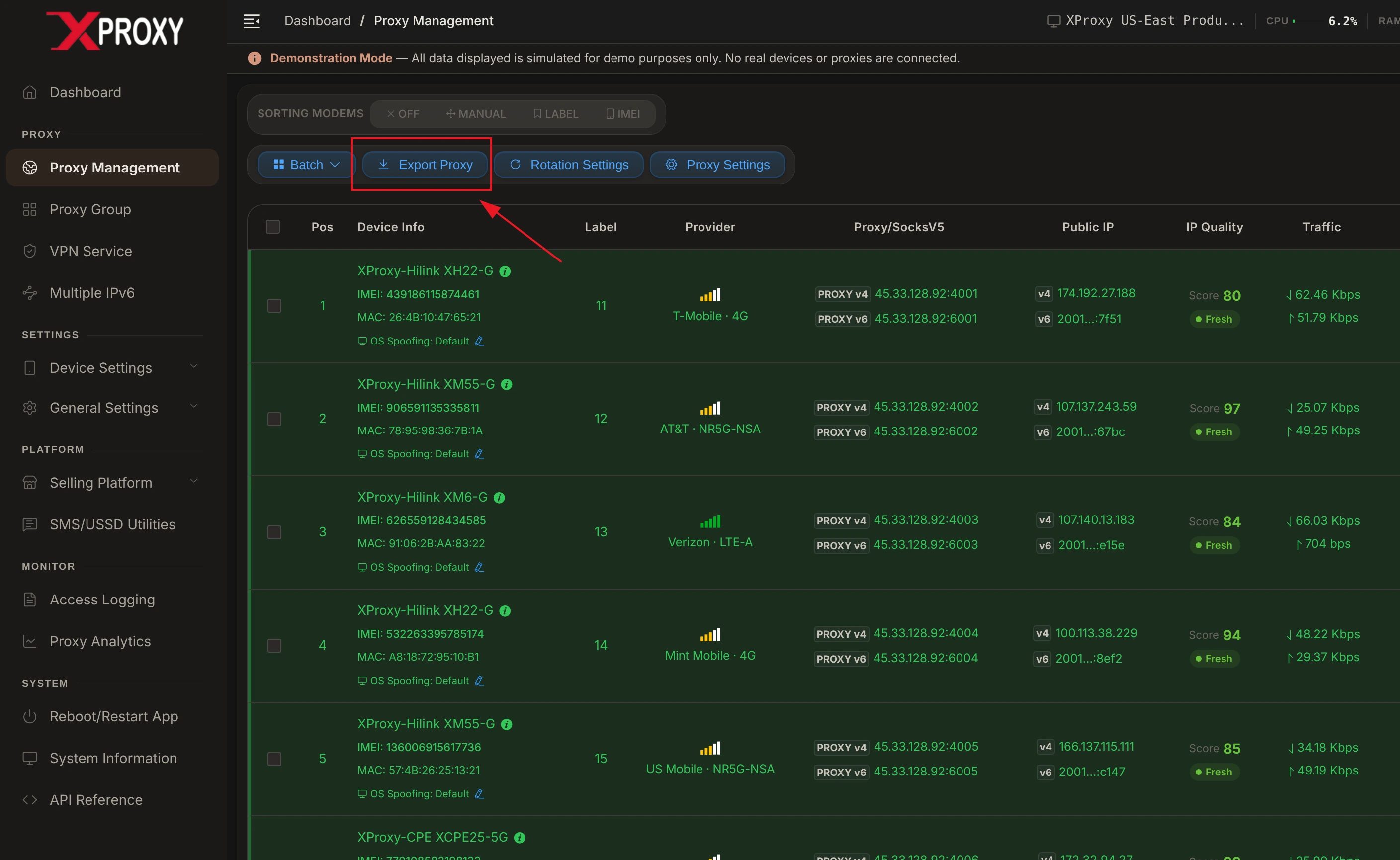
Log in to your XProxy Dashboard, navigate to Proxy Management, and click the Export Proxy button on the top toolbar:
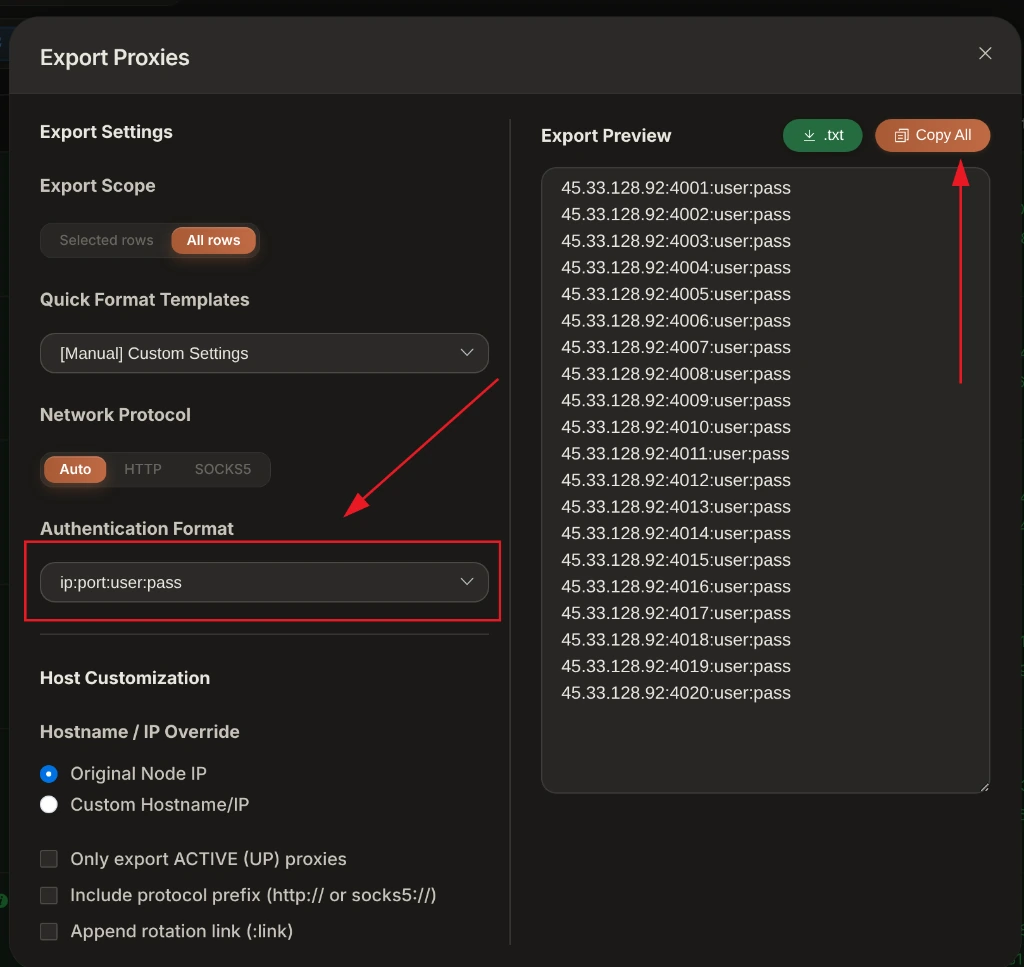
In the Export Proxies window, select your desired Authentication Format (e.g. ip:port:user:pass or ip:port) and click Copy All:
2. Add proxy to GoLogin
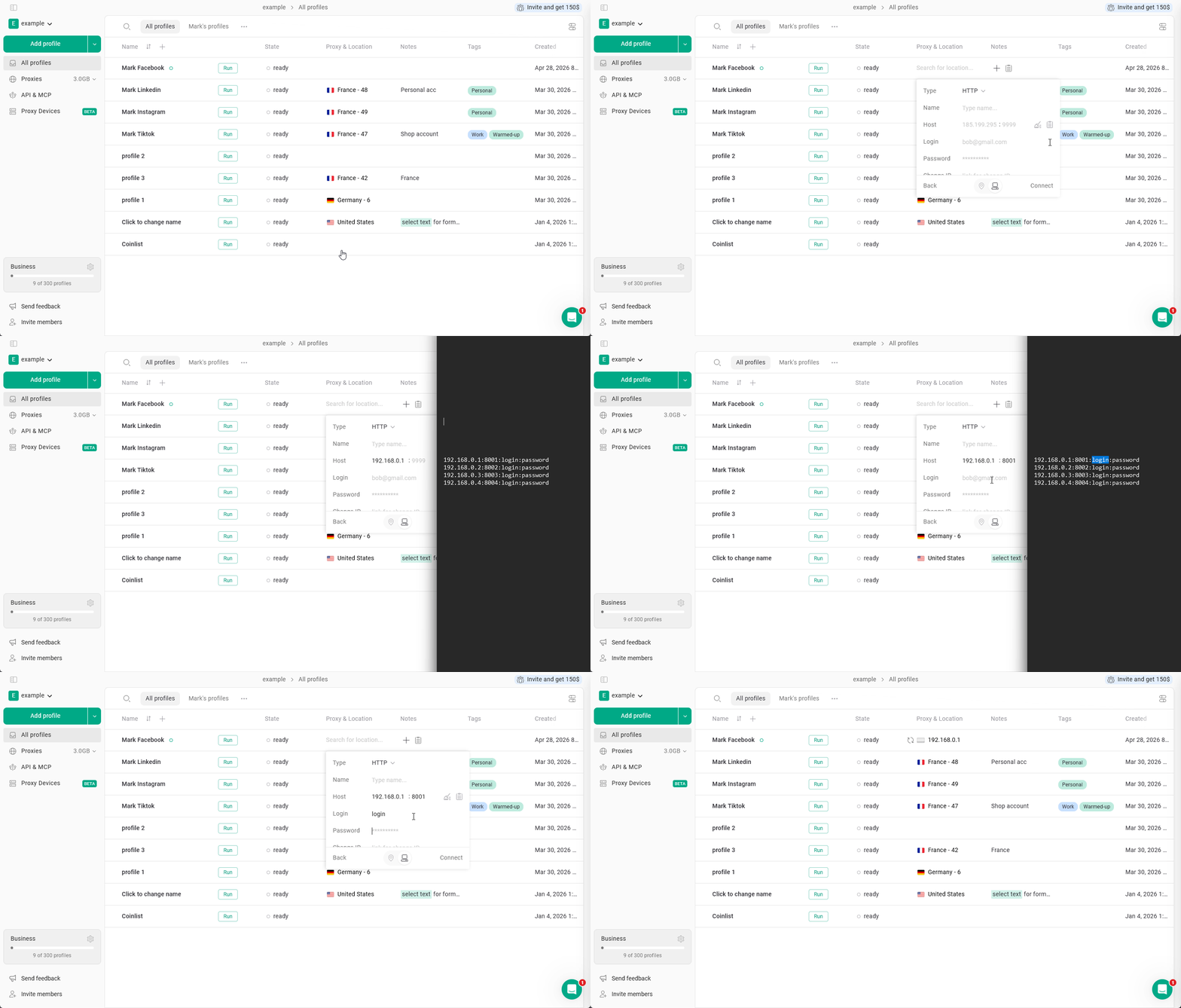
- Open GoLogin and click + Add Profile (or edit an existing profile).
- Go to the Proxy tab.
- Set Connection Type to
HTTPorSOCKS5. - Enter your XProxy IP address, Port, Username, and Password.
- Click Check Proxy. GoLogin will test the connection and display your exit IP and location details.
3. Configure auto IP rotation link
- In GoLogin's Proxy tab, locate the Link to Change IP field.
- Paste your XProxy rotation API endpoint using the position-based URL format:
http://192.168.6.7:8081/api/v1/rotate_ip/position/1 - GoLogin will now automatically trigger an IP rotation whenever you initiate a profile launch or click the rotation button.
XProxy Hardware & Fingerprint Synchronization
To ensure 100% profile isolation and prevent account flags in GoLogin:
- Timezone & Geolocation: Set both to Fill based on IP. GoLogin will query XProxy's mobile exit IP and match your browser timezone and GPS coordinates to your cellular carrier's CGNAT location.
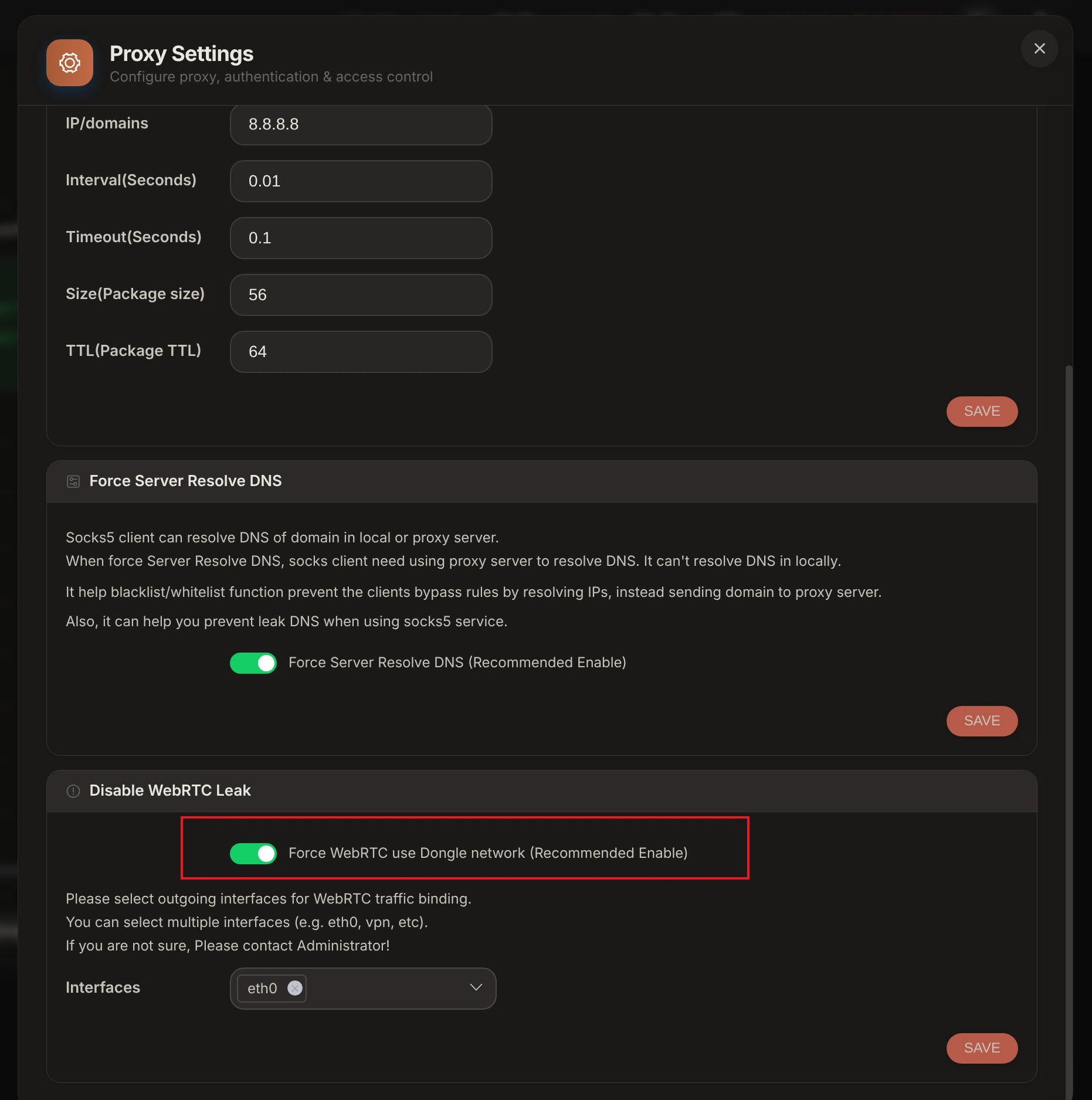
- WebRTC Leak Protection: Set WebRTC to Disabled or Altered / Replace to prevent WebRTC UDP requests from exposing your true local IP address.
- TCP OS Spoofing Alignment: Enable TCP OS Spoofing in XProxy Device Settings so SYN/ACK packet header signatures match your GoLogin profile OS (Windows or macOS).
Verification & Fingerprint Audit Tools
Before launching GoLogin profiles, audit your XProxy mobile connection using our free built-in leak checker and industry-standard verification suites:
- XProxy Free Proxy Leak Test (/proxy-leak-test) — Instantly verify WebRTC leaks, DNS queries, TCP OS fingerprinting, and cellular IP geolocation directly within XProxy.
- BrowserLeaks.com — Verify IP geolocation, WebRTC, and DNS leak protection.
- Whoer.net — Check overall anonymity score (target 100%).
- Pixelscan.net — Audit browser fingerprint consistency and detect proxy flags.
- IPhey.com — Evaluate browser hardware spoofing and IP trust level.
Bulk Importing XProxy Channels into GoLogin
If you manage a large XProxy farm (e.g. 10 to 100+ modems), you can import all proxy channels at once using GoLogin's bulk proxy manager:
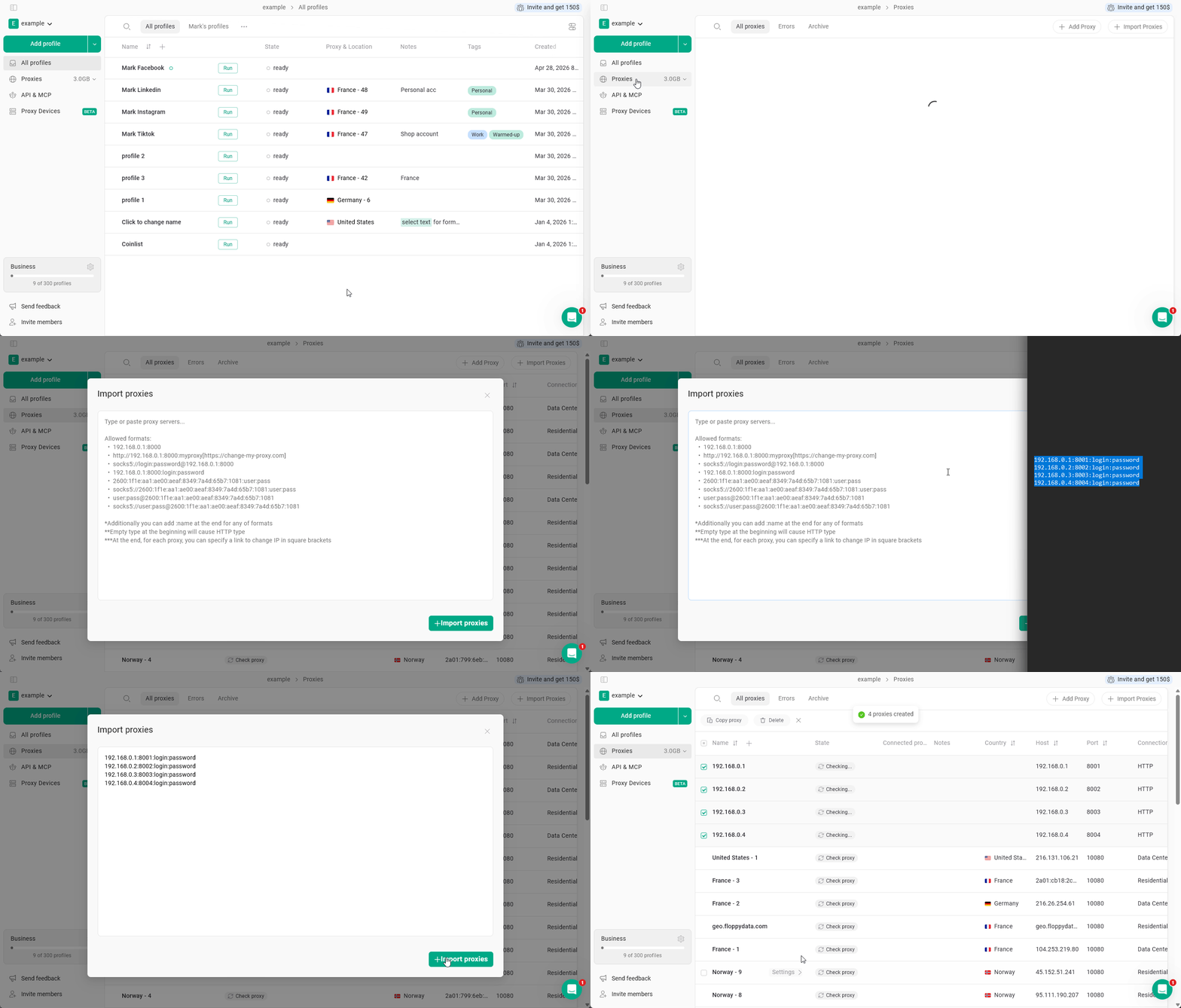
- Go to XProxy Dashboard ➔ Proxy Management ➔ Click Export Proxy ➔ Select
ip:port:user:pass➔ Click Copy All. - In GoLogin, click Proxies on the left menu ➔ Click + Add Proxies.
- Paste your proxy list into the text area. GoLogin will automatically parse each line, create a new browser profile for each proxy port, and pre-configure the connection.
