Dolphin{anty} との連携
Learn how to connect XProxy 4G/5G mobile proxies to Dolphin{anty} anti-detect browser with instant 1-click IP rotation links.
Why use XProxy with Dolphin{anty}?
Dolphin{anty} is one of the most popular anti-detect browsers for Facebook Ads, affiliate marketing, and multi-accounting. Paired with XProxy self-hosted mobile proxies, each browser profile gets a fresh, high-trust 4G/5G mobile carrier IP from your physical modems, preventing account cross-contamination and bans.
事前準備
- XProxy server running with active 4G/5G USB modems or Android phones.
- Dolphin{anty} desktop app installed.
- Proxy credentials (IP, Port, Username, Password, Change IP Link) from XProxy Dashboard.
Step-by-step setup in Dolphin{anty}
1. Get your proxy details
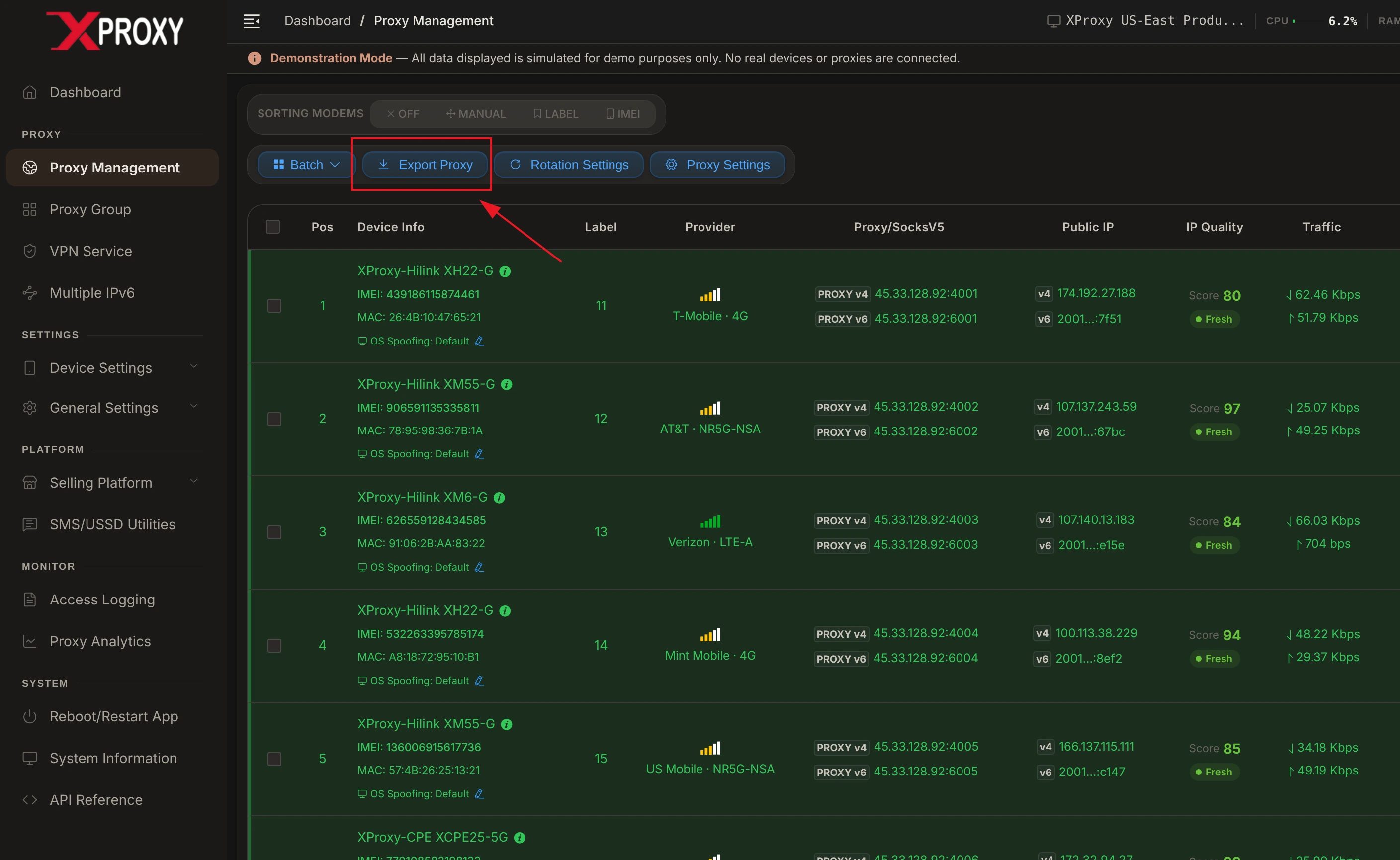
Log in to your XProxy Dashboard, navigate to Proxy Management, and click the Export Proxy button on the top toolbar:
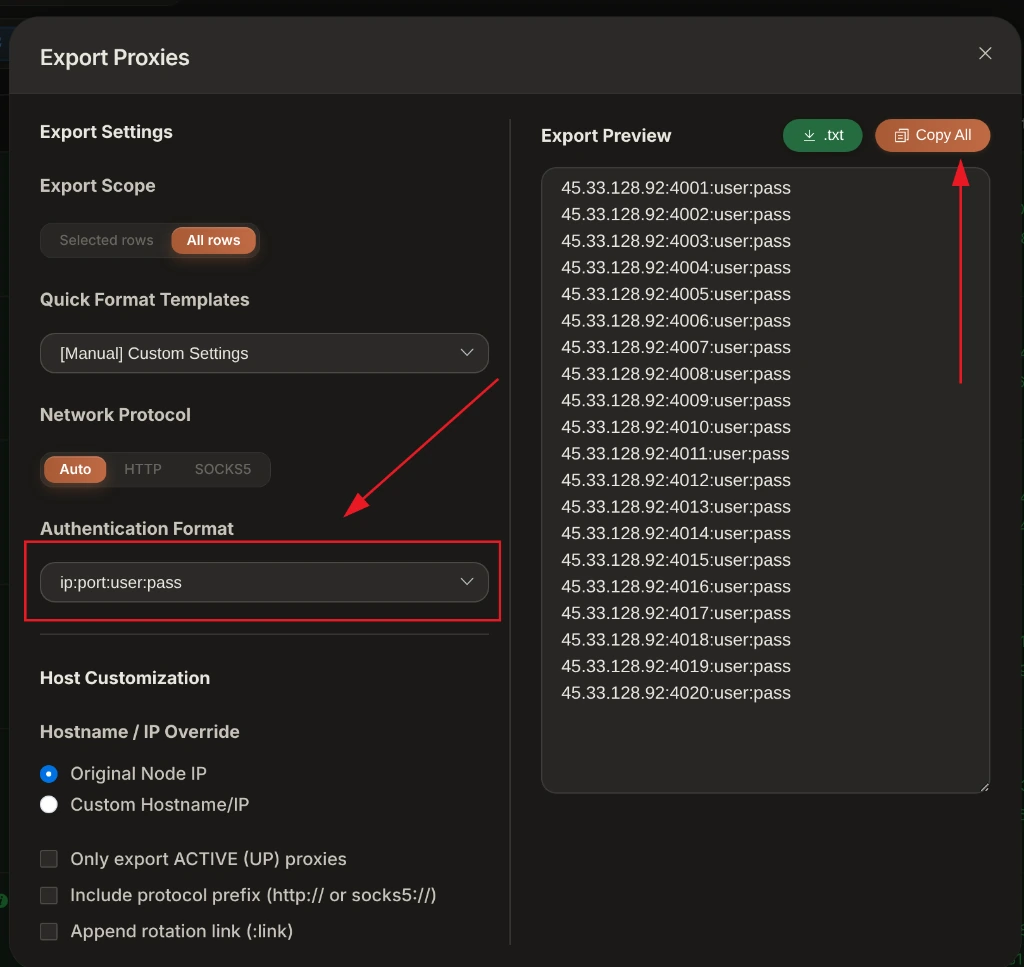
In the Export Proxies window, select your desired Authentication Format (e.g. ip:port:user:pass or ip:port) and click Copy All:
2. Add proxy to Dolphin{anty}
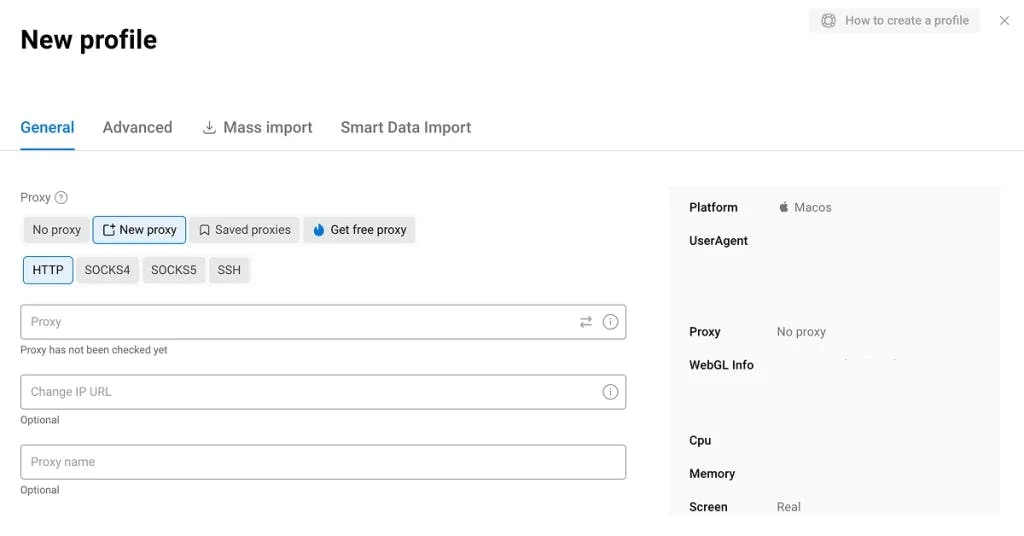
- Open Dolphin{anty} and click + Create Profile (or open Proxy Manager).
- Under Proxy, select
SOCKS5(recommended) orHTTP. - Enter your XProxy IP, Port, Username, Password, and Rotation API link in the designated format:
ip:port:username:password[http://192.168.6.7:8081/api/v1/rotate_ip/position/1] - Click Check Proxy to verify connection. You will see a green status with your mobile ISP info.
3. Use Proxy Manager for batch management
Dolphin{anty} features a dedicated Proxy Manager to store all your XProxy channels:
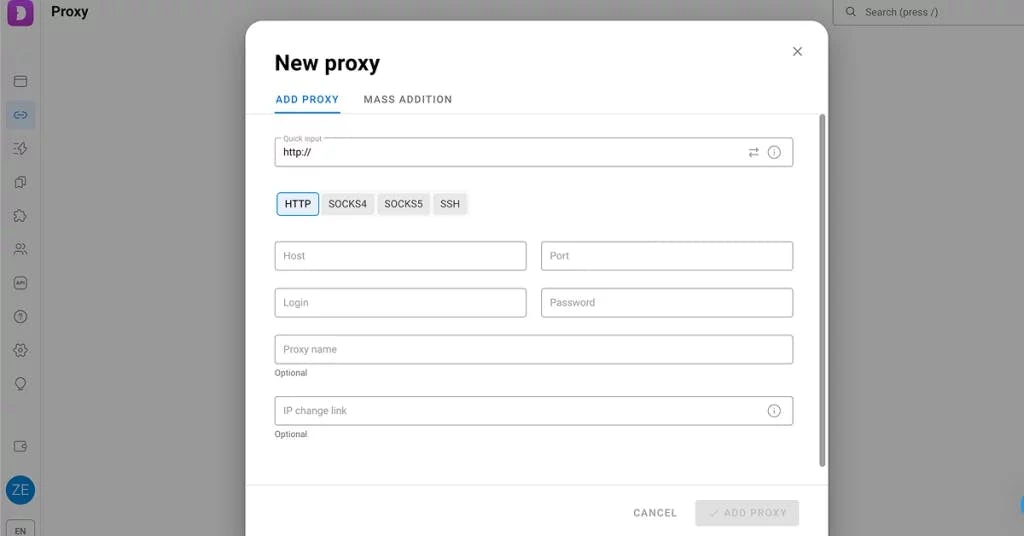
- Click Proxies on the left menu ➔ Click + Create Proxy.
- Paste your exported XProxy list with rotation API links appended in brackets.
- Assign saved proxies to profiles with a single click.
XProxy Hardware & Fingerprint Synchronization
To ensure 100% profile isolation and prevent account flags in Dolphin{anty}:
- Timezone & Geolocation: Set both to Auto. Dolphin{anty} will query XProxy's mobile exit IP and match your browser timezone and GPS coordinates to your cellular carrier's CGNAT location.
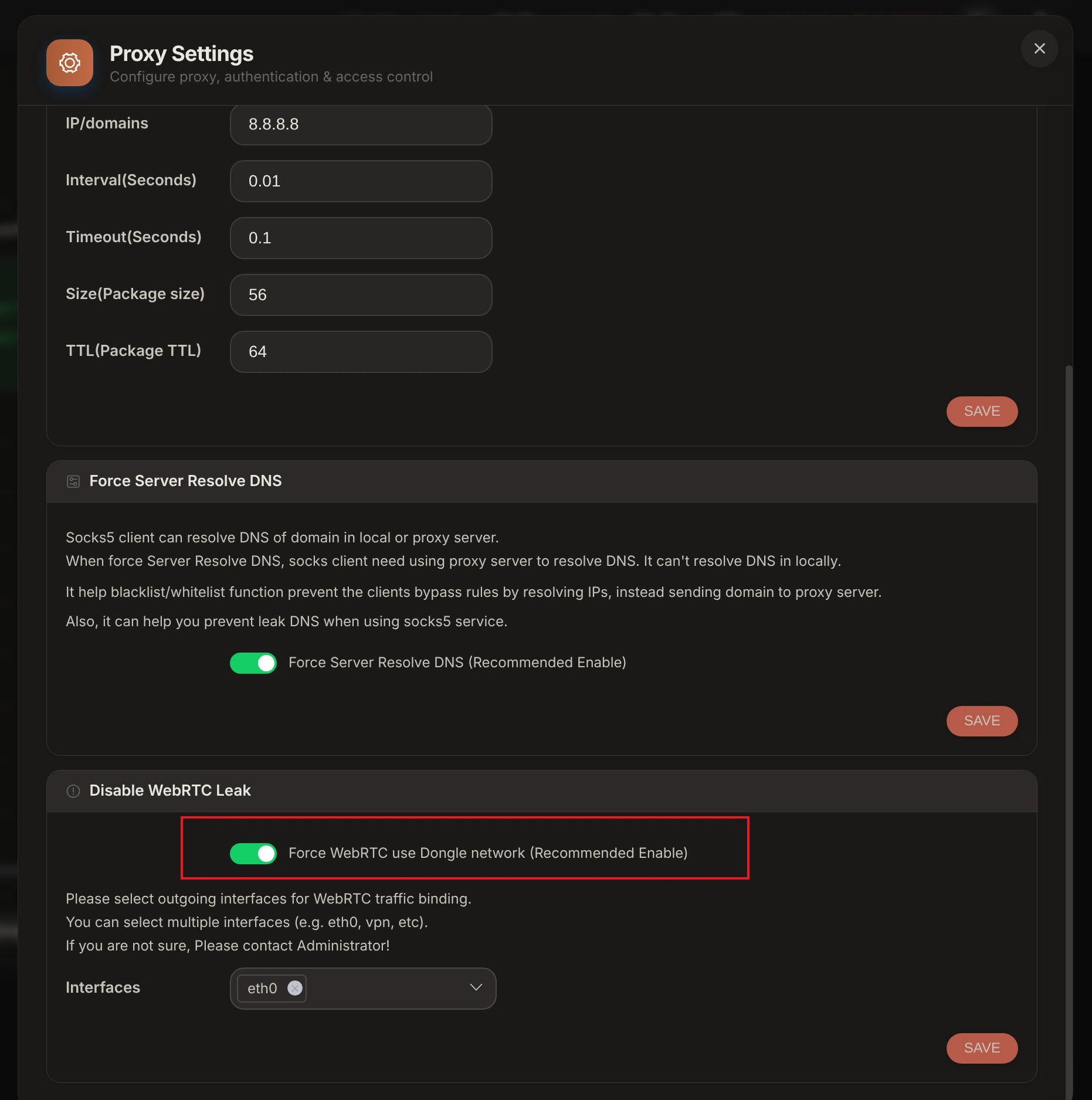
- WebRTC Leak Protection: Set WebRTC to Altered / Replace or Disabled to prevent WebRTC UDP requests from exposing your true local IP address.
- TCP OS Spoofing Alignment: Enable TCP OS Spoofing in XProxy Device Settings so SYN/ACK packet header signatures match your Dolphin{anty} profile OS (Windows or macOS).
Verification & Fingerprint Audit Tools
Before launching Dolphin{anty} profiles, audit your XProxy mobile connection using our free built-in leak checker and industry-standard verification suites:
- XProxy Free Proxy Leak Test (/proxy-leak-test) — Instantly verify WebRTC leaks, DNS queries, TCP OS fingerprinting, and cellular IP geolocation directly within XProxy.
- BrowserLeaks.com — Verify IP geolocation, WebRTC, and DNS leak protection.
- Whoer.net — Check overall anonymity score (target 100%).
- Pixelscan.net — Audit browser fingerprint consistency and detect proxy flags.
- IPhey.com — Evaluate browser hardware spoofing and IP trust level.
