
HTTP / SOCKS5 形式でのプロキシ利用
XProxy generates 4 proxy types per device. This guide explains the port scheme, how to use proxies on LAN vs public internet, and how to configure credentials.
Proxy port scheme
By default, XProxy generates 4 proxy types from each device (dongle or Android phone):
| Type | Protocol | Port (device #1) |
|---|---|---|
| IPv4 HTTP | HTTP | 4001 |
| IPv4 SOCKS5 | SOCKS5 | 5001 |
| IPv6 HTTP | HTTP | 6001 |
| IPv6 SOCKS5 | SOCKS5 | 7001 |
Device #2 uses ports 4002, 5002, 6002, 7002 — and so on.

Using proxies on LAN
If your computer is on the same network as the XProxy server, you can use proxies immediately — no credentials needed.
http://192.168.1.13:4001
socks5://192.168.1.13:5001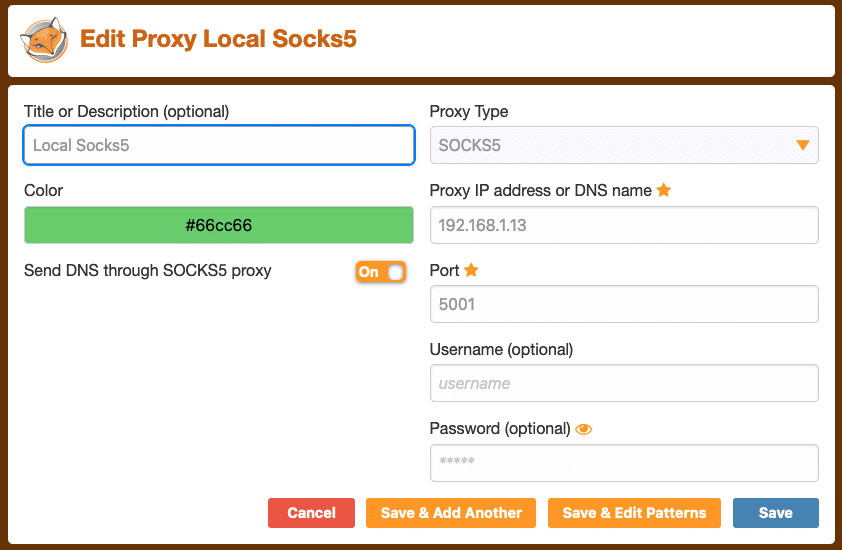
注: 192.168.1.13 は XProxy サーバーのローカル IP です。FoxyProxy は、プロキシサーバー間で接続を自動的に切り替える Firefox アドオンです。
Using proxies from outside your network
To use proxies from a remote location, you need to:
- Configure NAT/DMZ on your router — see NAT Forwarding guide.
- Set up proxy credentials (username/password or IP whitelist) — see below.
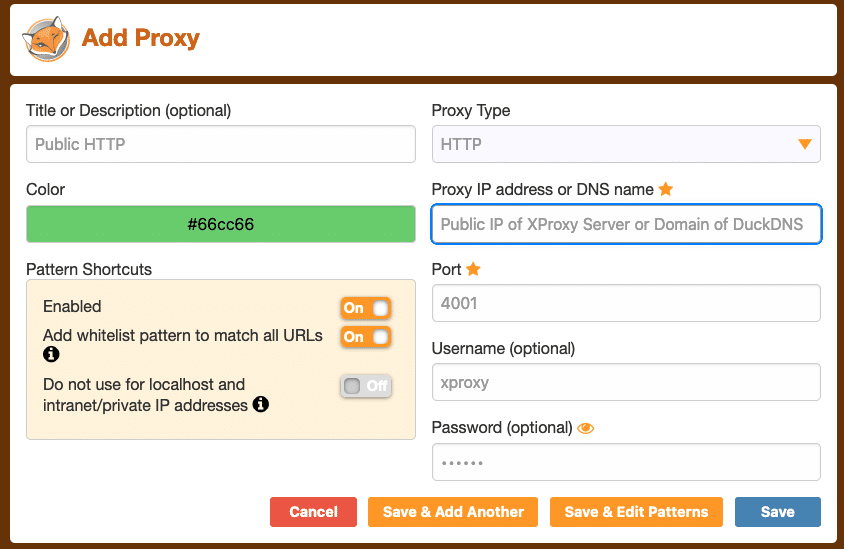
注: Proxy IP address or DNS name フィールドには、XProxy サーバーのパブリック IP または DDNS ドメインを入力してください。特定ポートのパブリック IP ではありません。
Configure proxy credentials
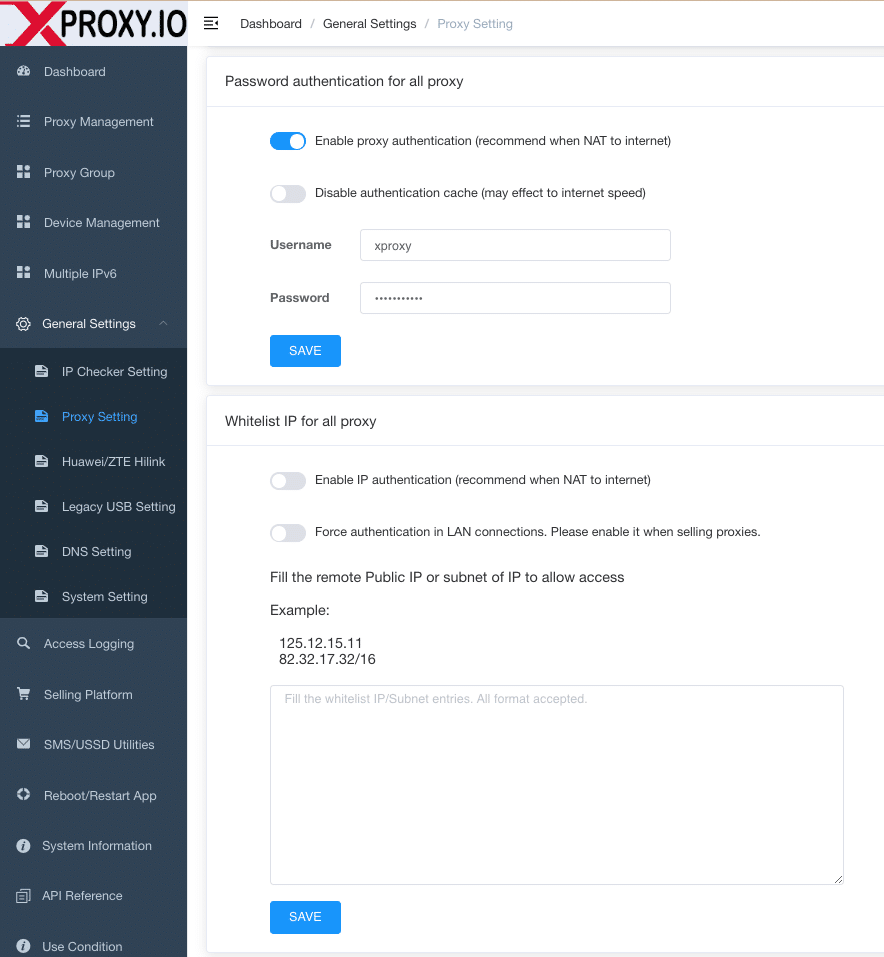
XProxy supports two credential types:
- Username / Password — authenticate with a user:pass pair.
- IP Whitelist — only allow connections from specific IPs.
Configure credentials for all ports at once in General Settings → Proxy Setting, or per port for fine-grained control.
ポートごとの設定は、異なるプロジェクトやユーザー間でプロキシを共有する場合に便利です:
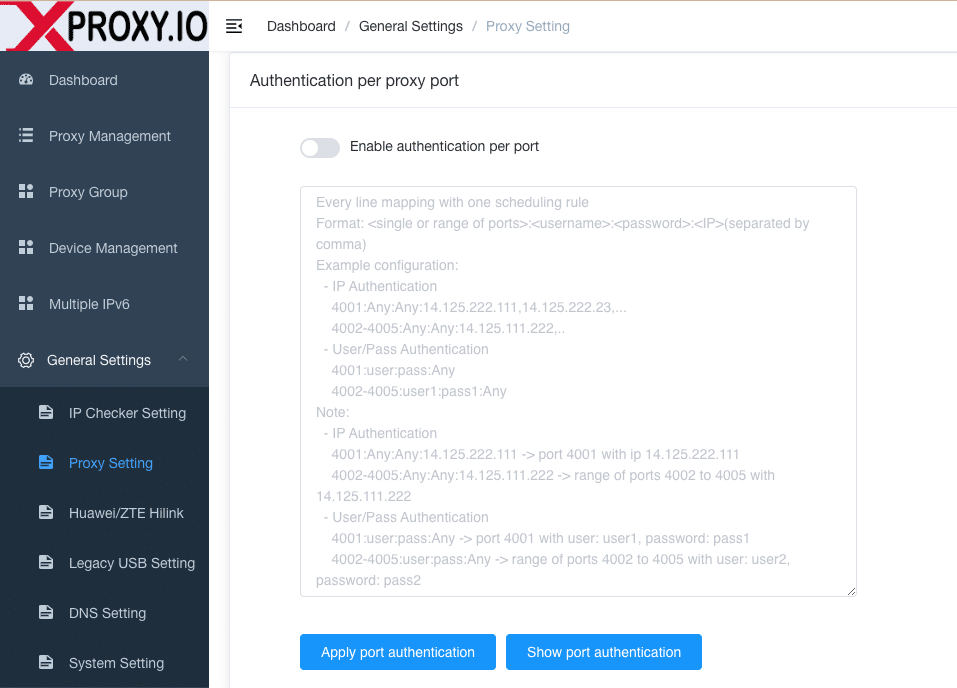
Per-port credential syntax
Format: port[:end_port]:user:pass:ip_whitelist — use Any to skip a field.
# IP whitelist authentication
4001:Any:Any:14.125.222.111,14.125.222.23
4002-4005:Any:Any:14.125.111.222

# Username / password authentication
4001:user1:pass1:Any
4002-4005:user2:pass2:Any